The app menu
Who: manager or Admin.
The AutoLNK POS menu at the very top left of the window controls the computer itself. It doesn't change the sale on screen.
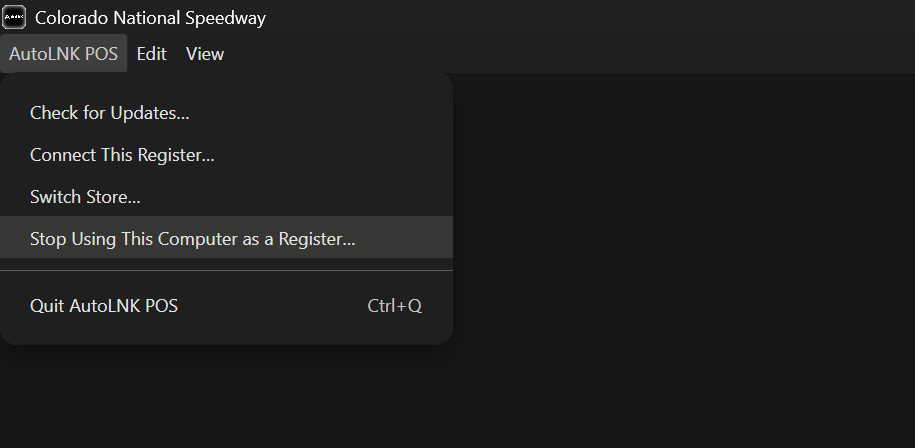
| Menu item | What it does | When to use it |
|---|---|---|
| Check for Updates… | Looks for a newer version of the app | The app isn't working as expected, or support asks you to update |
| Connect This Register… | Connects this computer with a new connection code | The computer is moving to a different register |
| Switch Store… | Leaves this store and connects to another one | The computer is moving to a different venue |
| Stop Using This Computer as a Register… | Gives the register back so another computer can use it | The computer is being retired or will only be used for back-office work |
| Quit AutoLNK POS | Closes the app | End of day |
Connect This Register, Switch Store and Stop Using This Computer as a Register change how this computer is set up. Anyone signed in is signed out. Only an Admin should use them.
Stop using this computer as a register
- Sign in as an Admin.
- Open the AutoLNK POS menu and click Stop Using This Computer as a Register….
- Click Stop using as a register to confirm.
Another computer can now use the register. This computer stays open for back-office work.