Change items on a sale
Who: cashier. When: a customer wants two of something, an item needs a note, you pick a size, or the customer has a promo code.
Quick version
Tap the item in the sale › change Quantity, Price, Discount or Note. Tap the trash icon to remove it.
Change one item
- Tap the item in the sale on the right. Its details open.
- Change what you need:
- Quantity: how many.
- Price: the price of one.
- Discount: a percentage off this item.
- Note: a note for this item, such as Gift.
- Tap the item again to close it.
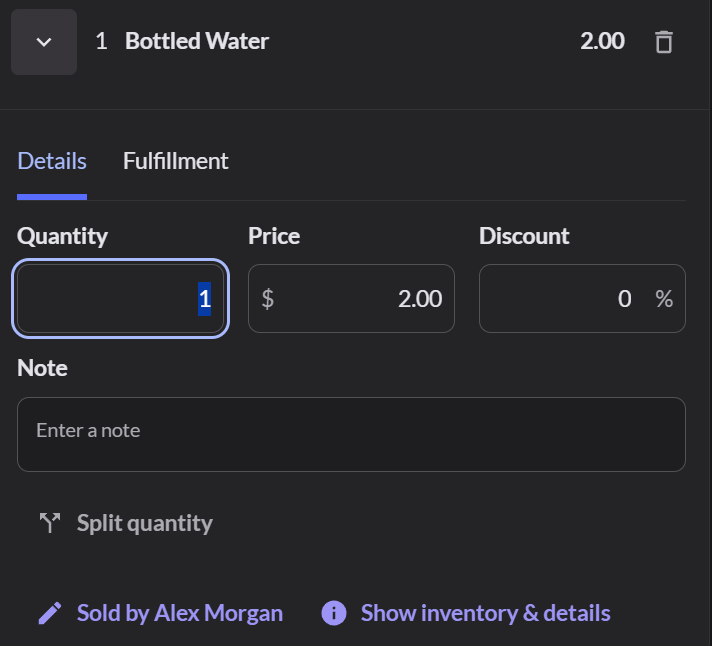
To take an item off the sale, tap the trash icon next to it. Tap Sold by on an item to change who sold it. For the whole sale, click More actions… › Assign all sale items.
A lower price counts as a discount. Your role sets the biggest discount you can give. If it's too big, the screen tells you to ask a manager.
Pick a size or color
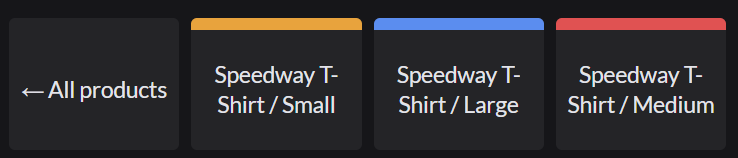
Some products come in sizes or colors. Tap the product, then tap the size or color you want. To go back without choosing, tap ← All products.
Add a promo code
- Add the items first.
- Under ADD, tap Promo code.
- Type the Code and tap Add.
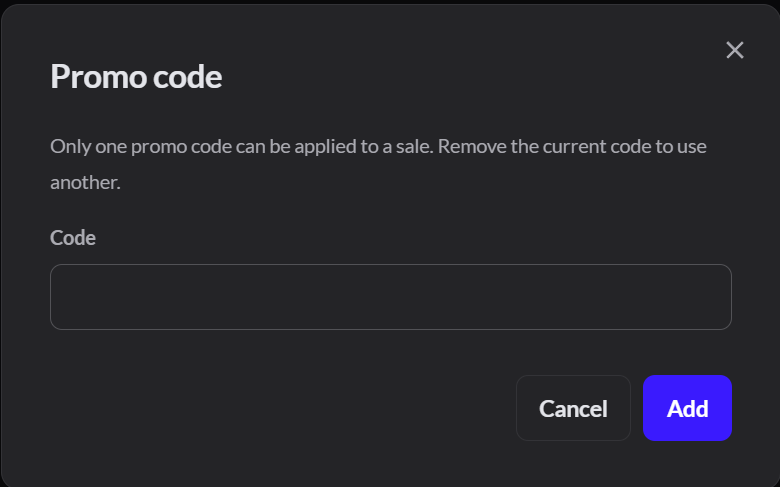
Only one promo code can be used on a sale. To remove it, tap the code in the totals, then Remove code. You can also scan a promo code.
If it doesn't work
- "This promo code doesn't exist at this outlet": check the code and try again.
- "This promo code has reached its redemption limit" or "its promotion ended": the code can't be used anymore.
- "This sale doesn't qualify for the promotion on this code": the sale doesn't have the items or amount the promotion needs.
- "Your role allows a maximum line discount": ask a manager to give the discount.
- There's a lock instead of the trash icon: the sale was already rung. A manager has to void the sale.Void a sale