Store details
Who: an Admin. When: changing the store name or contact details.
Go to Setup › General.
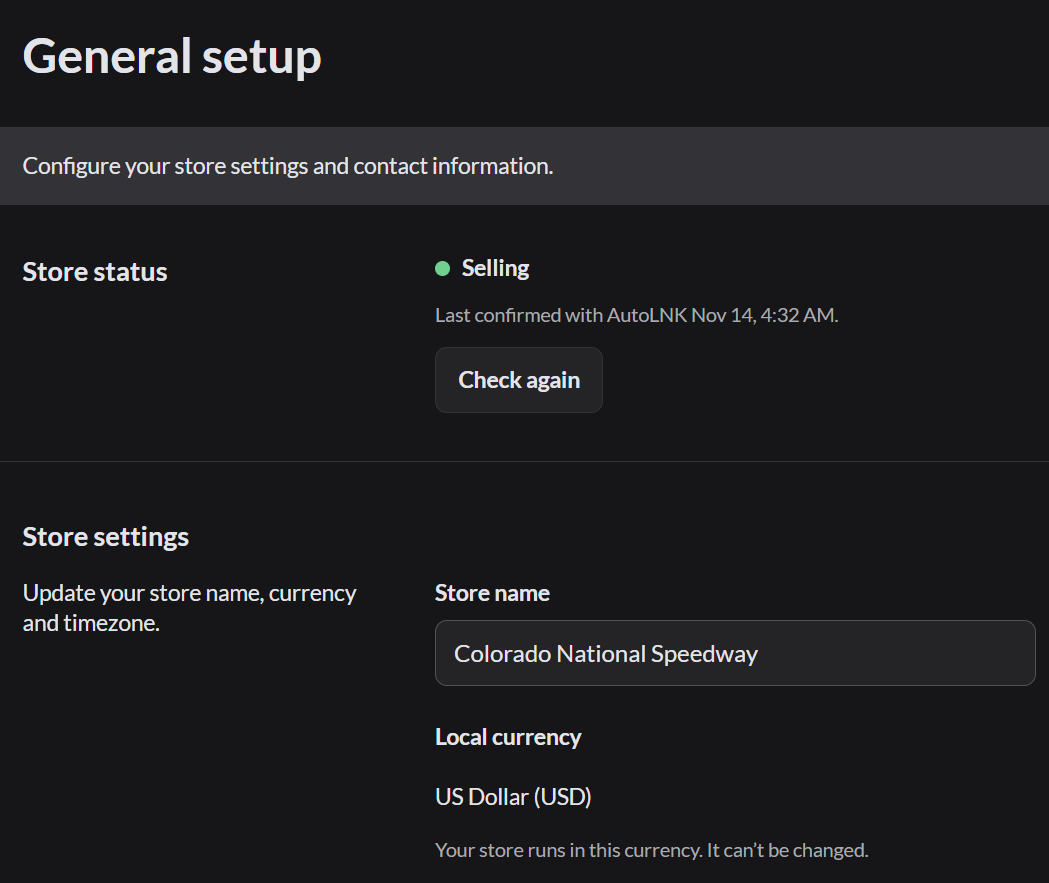
| Part | What it is |
|---|---|
| Store status | Selling means the store is active. If it shows anything else, click Check again |
| Store name | The name on the sign-in screen, the Home screen and receipts |
| Local currency | Fixed when the store is created. It can't be changed |
| Time zone | Locked once the store has sales. Each outlet can have its own time zone |
| Demo mode | Opens the practice store. More about Demo mode |
| Contact information | The store's contact name, phone, email, address and website. They aren't printed on receipts, except the Website, which can show as a link in the receipt footer |
Change the store name
- Type the new name in Store name.
- Click Save changes at the top.
The new name shows everywhere right away.
If the store status isn't Selling
A banner at the top of the app explains why.
- Selling paused: new sales stop. Refunds, returns, closing the register and reports still work.
- POS turned off: the whole app is locked and says "Your POS access has been turned off by AutoLNK."
If the banner doesn't clear, contact AutoLNK support.