Start a tab or a counter order
Who: server or cashier. When: a customer orders food without a table.
There are two ways to take an order without a table:
- Counter order. The customer pays right away. The order screen calls it a Direct sale.
- Tab. You give the order a name and send it to the kitchen. The customer pays later.
Quick version
Counter order: tap the items › Pay. Tab: Tab name › type a name › OK › tap the items › Send.
Take a counter order
- Go to Sell. The top of the order says Direct sale.
- Tap the items.
- Click Pay and take payment. How to take payment and tips
When the customer pays, the items go to the kitchen.
A counter order has no Send button. To send food to the kitchen before the customer pays, start a tab instead.
Before you leave a counter order: click On hold. Otherwise Discard items and close? throws its items away.
Start a tab
1. Name the tab
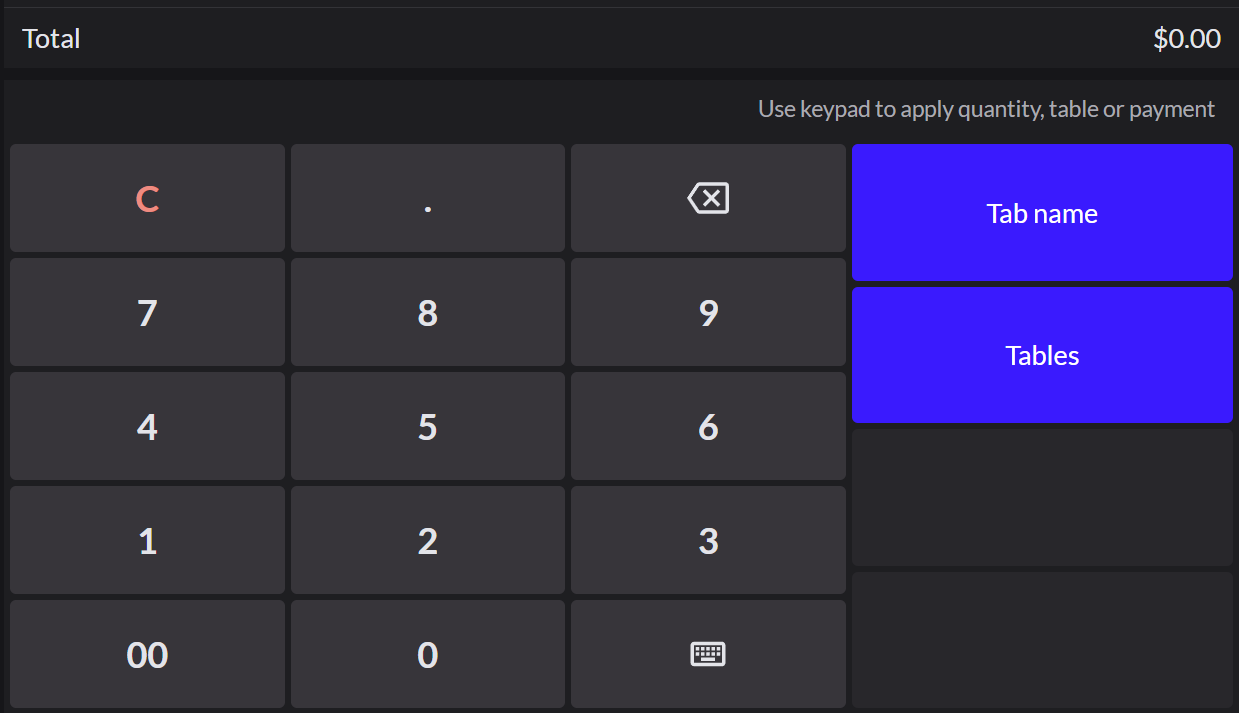
Go to Sell. Before you add any items, click Tab name.
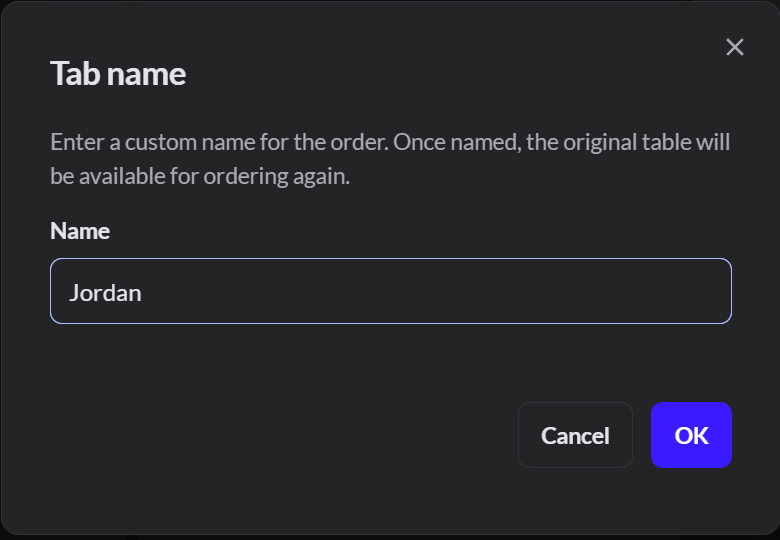
Type the customer's name and click OK.
The Tab name key only shows before you add items. If you already added items, click Actions at the top of the order, type the name in Tap to rename order, and press Enter.
2. Add the items and send them
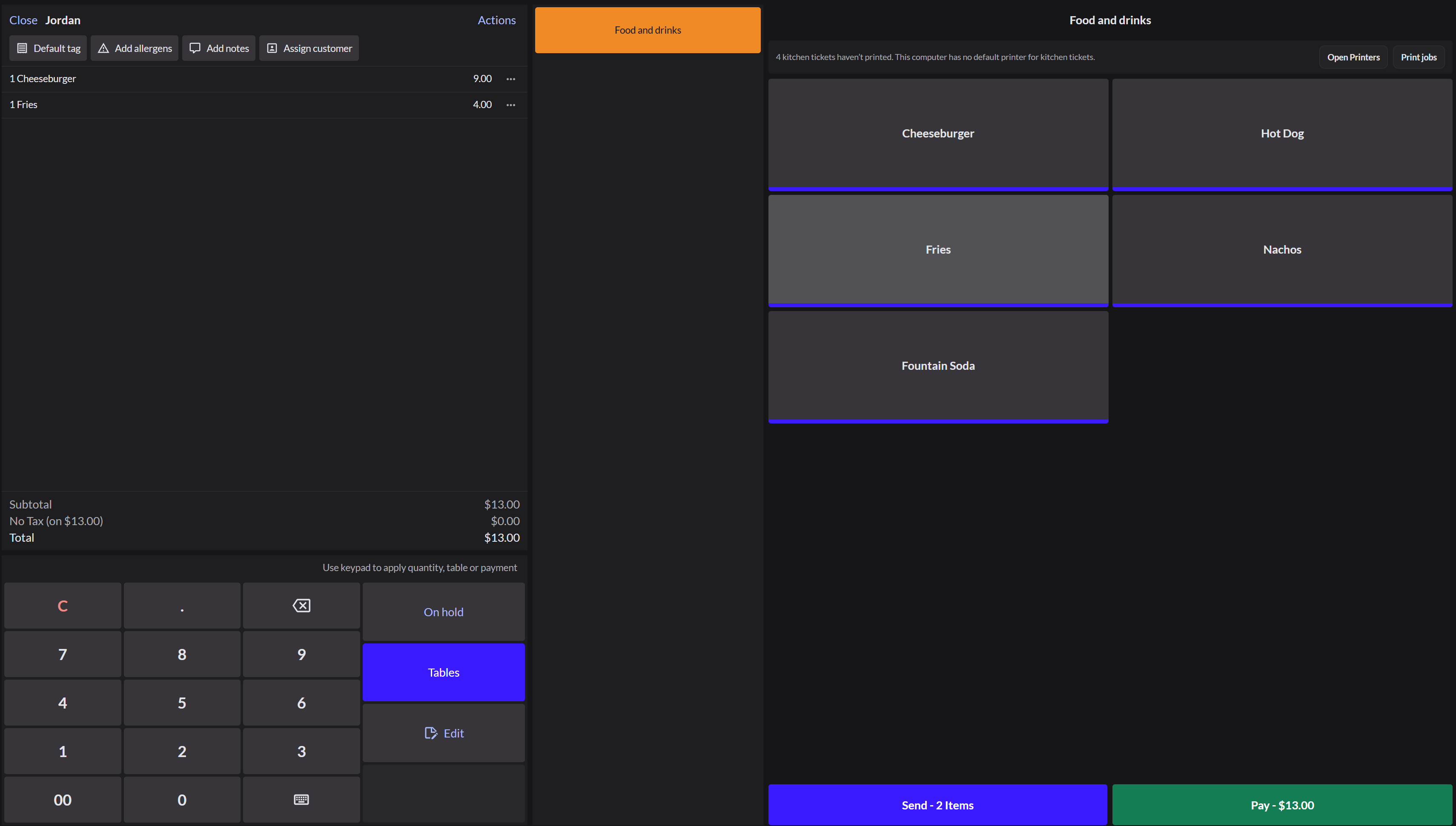
Tap the items, then click Send. The items go to the kitchen and the tab stays open.
Put a counter order on hold
If a customer steps away before paying, you can set their order aside and serve the next customer.
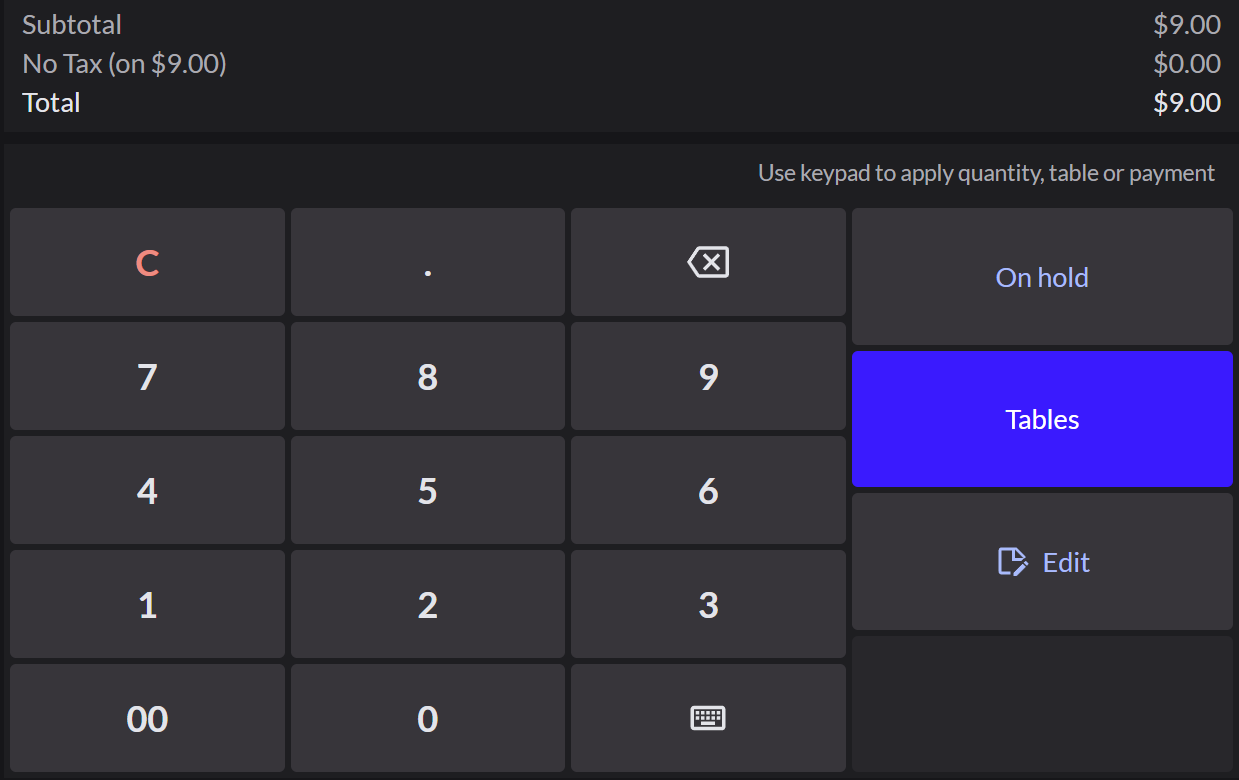
- Click On hold on the keypad. The screen clears for the next order.
- To bring it back, go to Sell › Orders and click Dine-in. Held orders show as Direct sale. Click it to open it, then take payment.
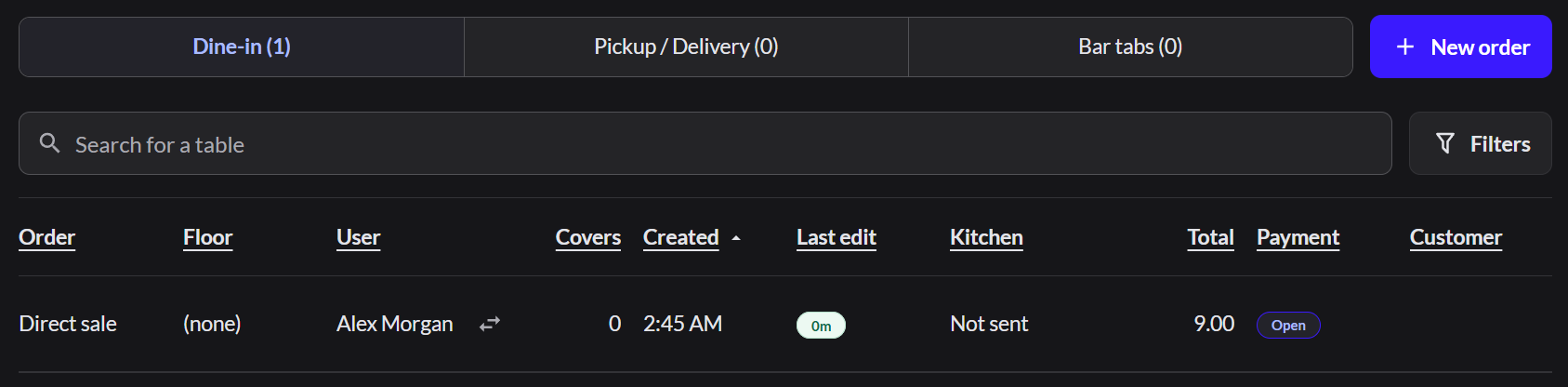
Not sent in the Kitchen column means the kitchen doesn't have the food yet. The items go to the kitchen when the customer pays.
Find a tab later
- Go to Sell › Orders and click Bar tabs. Each tab shows who started it, its total, and whether it's paid.
- Click the tab to open it.
- To close the tab, click Pay and take payment.
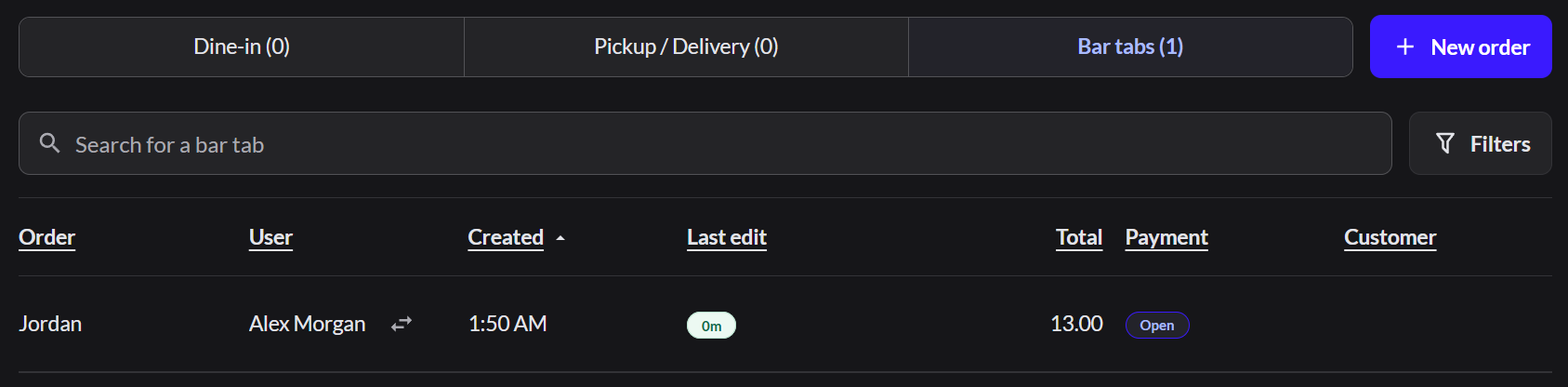
To find a tab by name, type it in Search for a bar tab.
If it doesn't work
- There's no Send button: the order has no name or table. Name it first.
- There's no Bar tabs list: tabs aren't turned on for this register. Ask an Admin.
- No Tab name key, or the name is refused: this register doesn't take tabs. Take payment now. The kitchen gets the order when it's paid.
- The tab is grayed out: someone else started it, and your role can't open other people's orders. Ask them or a manager to give the order to you.Give an order to another server