Home dashboard
Who: manager or Admin. When: you want to see today's sales and which stands are open, at a glance.
Home is the first page in the left menu. It shows today's sales for the outlet, a map of the venue with a flag for each stand, and a card for each register.
Quick version
Click Home › Today › check the map and the register cards › View sales for details.

Read the venue map
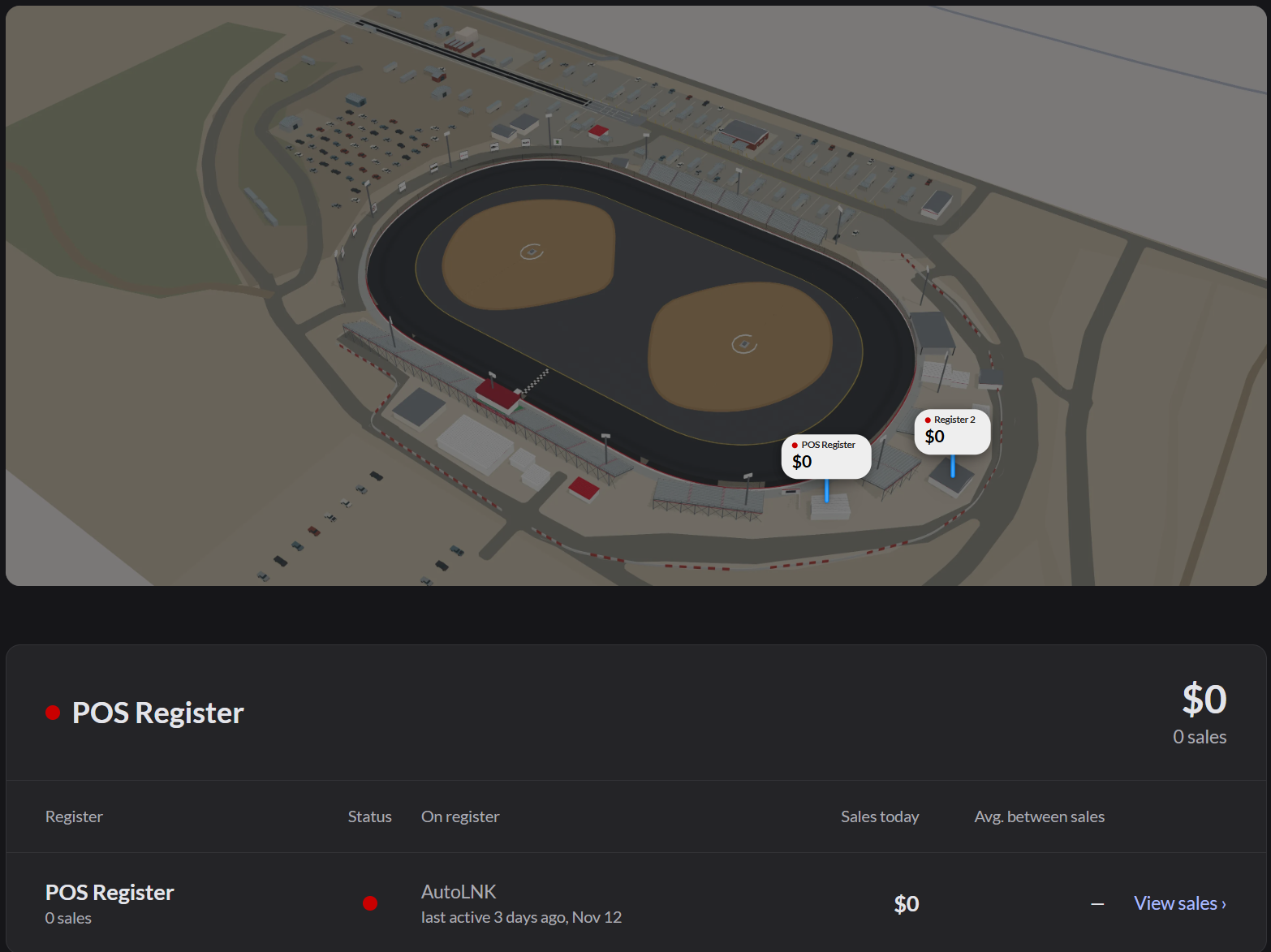
- Each flag is a stand. It shows the register name and its sales today.
- A green dot means the register is open. A red dot means it's closed.
- A flag pulses when it makes a sale. New sales show as a green amount, and refunds as a red amount.
The map only shows for Today and your own outlet. For This week or This month, Home shows sales charts instead.
The map shows only if your outlet has a venue map. If no registers are placed on the map, it still shows, but with no flags and no register cards.
Read the register cards
Below the map, each register has a card, with the busiest first:
| Column | What it shows |
|---|---|
| Status | Green if the register is open, red if it's closed |
| On register | Who is signed in, and since when |
| Sales today | Money taken today |
| Avg. between sales | How long between sales |
Click View sales to see that register's sales in Sales history.
If it doesn't work
- "The venue map could not load": Home shows the usual dashboard. Try again later.
- "Your role does not include sales reports": ask an Admin.
- A stand is on the wrong spot: an Admin can right-click the spot and choose Change register.