Connect over the network
Who: an Admin, with someone at the new computer. When: connecting a computer that's on the same Wi-Fi as a running register.
You can use this instead of a connection code. The new computer asks to join, and an Admin approves it.Connection codes
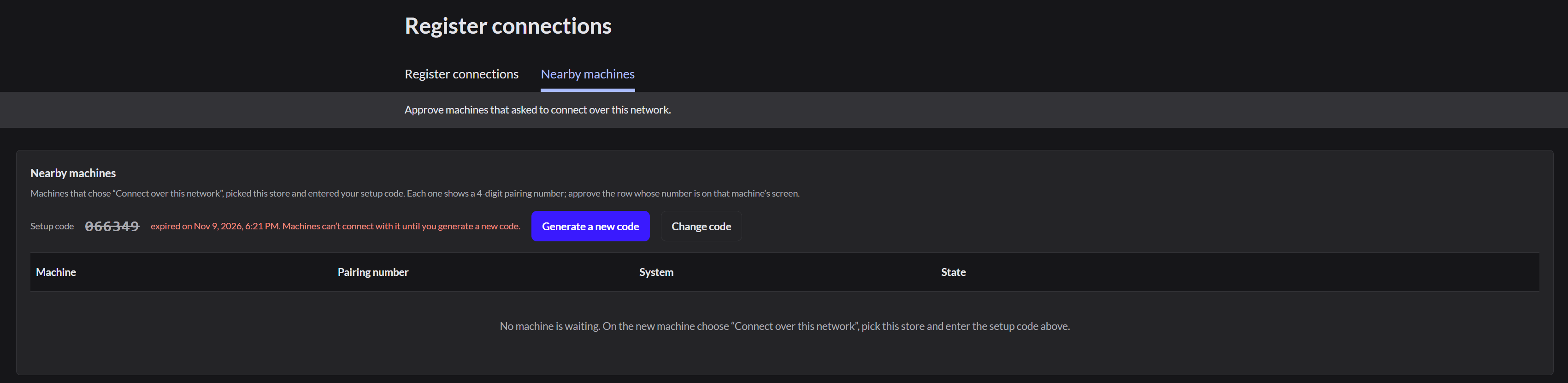
1. Find the setup code
- Go to POS › Register connections and open the Nearby machines tab.
- Note the 6-digit setup code. If it has expired, click Generate a new code.
2. Ask to connect from the new computer
- Open AutoLNK POS on the new computer.
- Click Connect to a store, then Connect on the same network.
- Type the 6-digit setup code and a name for the computer.
- Click Ask to join this store.
The new computer shows a 4-digit pairing number and says Waiting for approval.
3. Approve it
- Back on the Nearby machines tab, the new computer appears in the list. Click Approve on its row.
- Check that the pairing number matches the one on the new computer's screen.
- Choose the Register.
- Click It matches — approve.
A register marked replaces … is taken from that computer, which then loses access.
The new computer connects by itself and becomes a register.
Only approve a row whose pairing number matches a computer you can see. The matching number tells you it's your computer.
If it doesn't work
- "No store on this network is open to new machines": check both computers are on the same Wi-Fi and a connected register has AutoLNK POS open.
- "The setup code expired": on the Nearby machines tab, click Generate a new code. Type the new code on the new computer.
- The new computer can't find the store: both computers must be on the same network. Use a connection code instead.Connection codes