Manage customers
Who: cashier or manager. Cashiers can do this unless an Admin has turned it off. When: you need to add a customer, fix their details, look up their sales, or give store credit.
To add a customer during a sale: How to add a customer to a sale
Quick version
Customers › Add customer › first name, last name, email or phone › Add customer.

Find a customer
Go to Customers in the left menu. Search by name, customer code or contact details. Click the arrow next to a customer to see their details, store credit and account.
Add a customer
- Click Add customer.
- On Contact information, type the First name, Last name, and an Email or Contact number.
- Click Add customer.
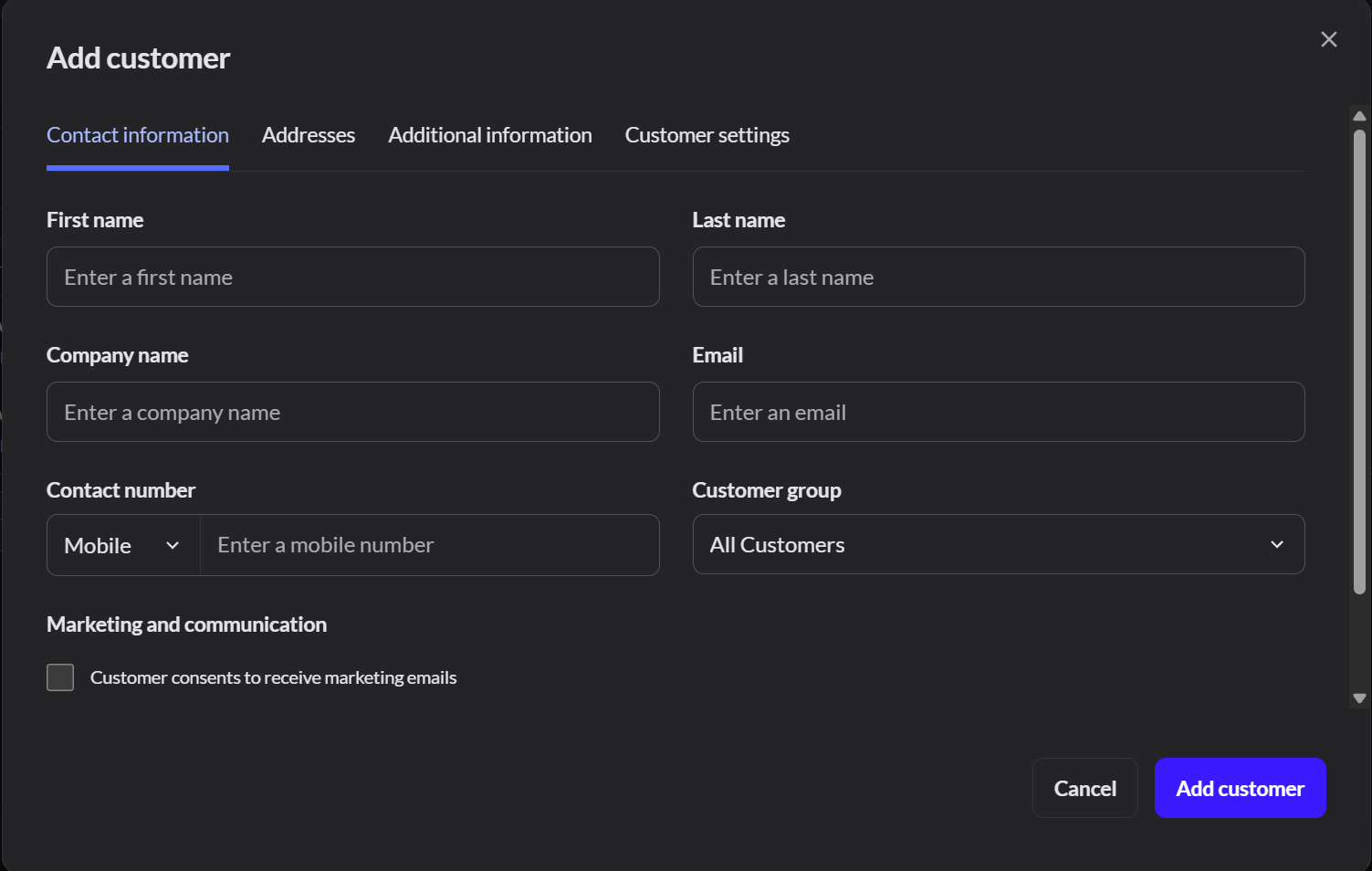
The other tabs have the customer's addresses, more details, and settings such as Allow on-account balance.
Change or remove a customer
- To change details, click the pencil next to the customer, then Save changes.
- To see what they bought, open the customer and click View sales.
- To remove a customer, open them and click Delete, then Delete customer. This can't be undone. Their past sales stay, under an anonymous customer. Cashiers can't delete customers. You can't delete a customer with store credit, unpaid sales or open orders.
Give store credit
Store credit is only in Retail mode.
- Open the customer and click the Store credit tab.
- Click Issue store credit.
- Choose Add store credit or Remove store credit, type the Amount and a Note.
- Click Issue store credit.
Giving store credit by hand needs the Issue manual store credit permission. Managers have it by default.