Change an order
Who: server or cashier. Some changes need a manager. When: a guest changes their order, or an item needs a note for the kitchen.
Quick version
Click … next to the item › choose Notes, Allergens, Quantity, Remove from order or Adjust price.
Change one item
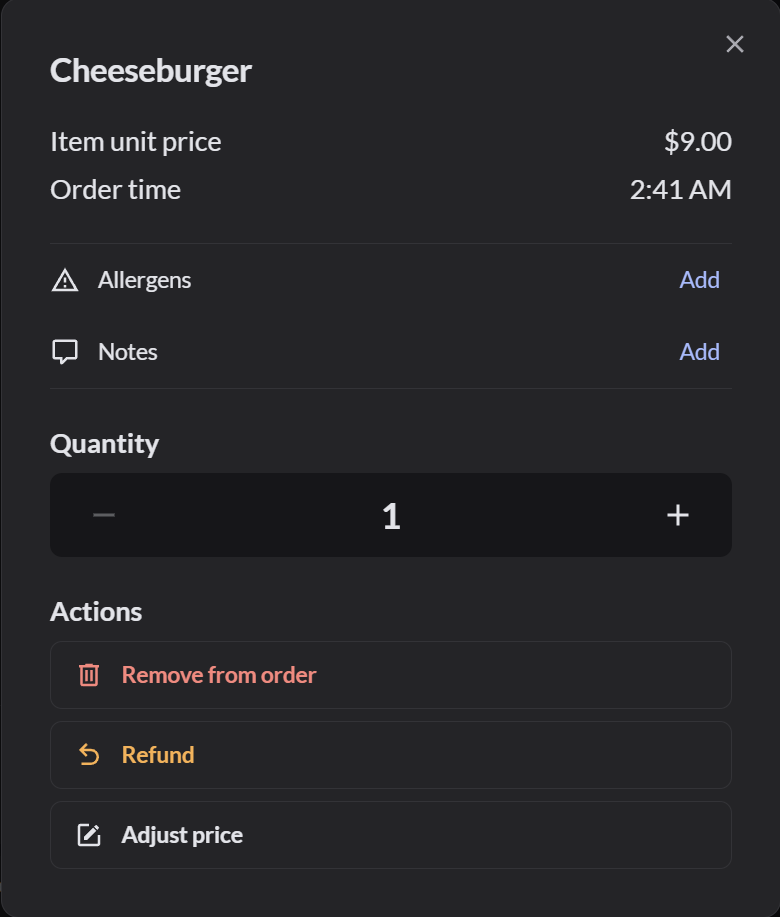
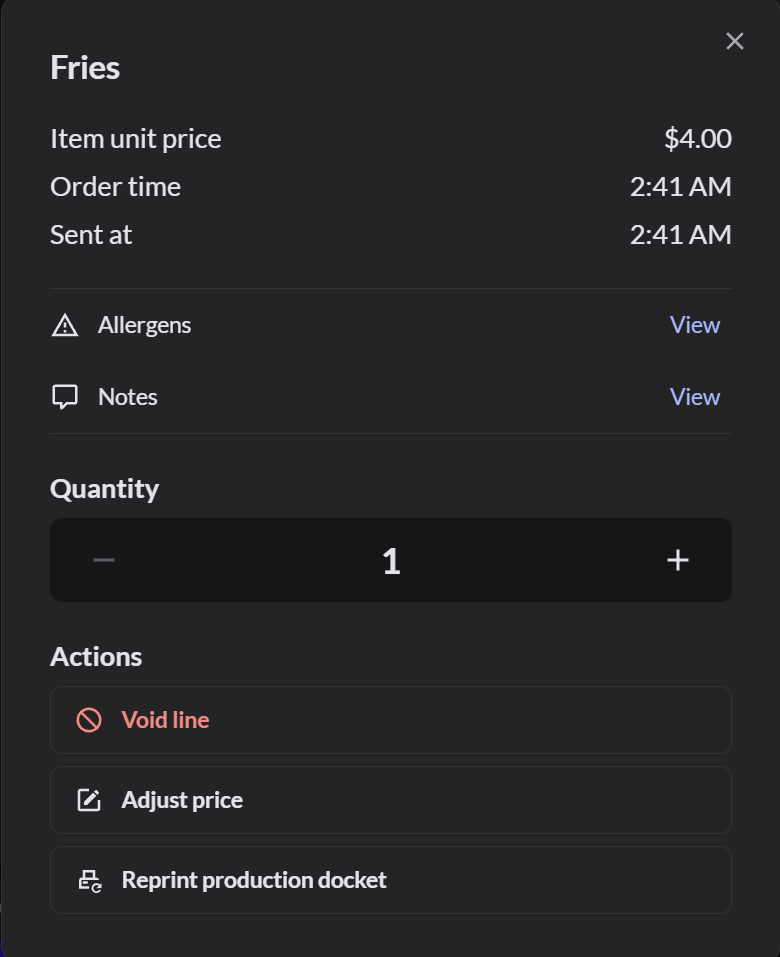
Click … next to the item. What you can do depends on whether the item was sent to the kitchen.
Before the item is sent:
After the item is sent:
| Action | What it does |
|---|---|
| Allergens › Add | Adds an allergen to this item's kitchen ticket |
| Notes › Add | Adds a note to this item's kitchen ticket, such as No onions |
| Quantity | Changes how many. For an item already sent, the quantity can only go up, and extras are added as a new line to send |
| Remove from order | Takes off an item that wasn't sent |
| Void line | Takes off an item that was sent. How to void a sent item |
| Refund | Refunds this item. How to refund a restaurant order |
| Adjust price | Changes this item's price. Your role must allow it |
| Reprint production docket | Prints this item's kitchen ticket again |
You can add notes and allergens only before you send the item. After that, the button says View.
Add a note to an item
- Click … next to the item, then Add next to Notes.
- Click Create note, type the note, and click Add.
- Click Save. The note shows under the item and on its kitchen ticket.
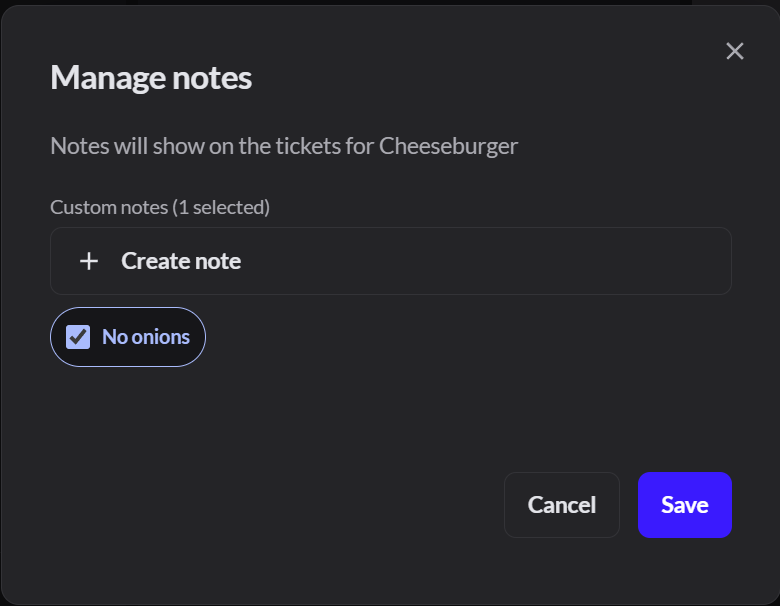
Notes a manager saved in Catalog › Production instructions show here too, so you can tap them instead of typing. More about notes, allergens and production instructions
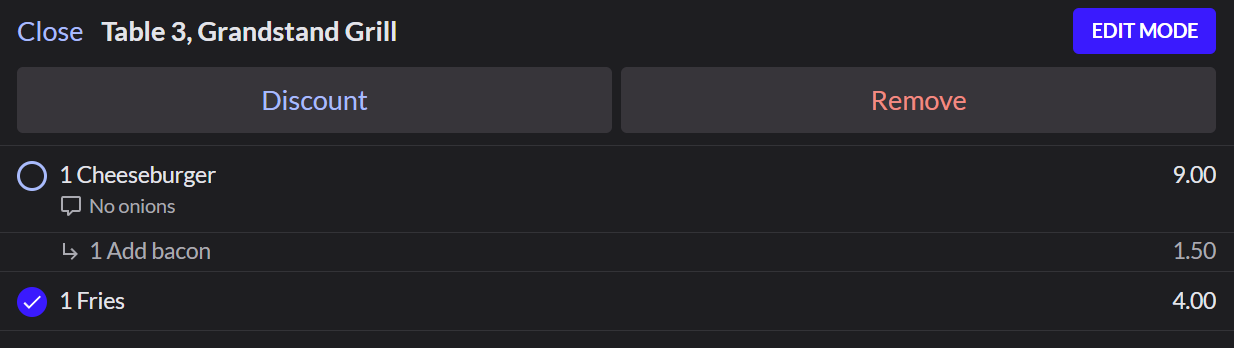
Change several items at once
- Click Edit on the keypad.
- Select the items.
- Click Discount to discount them, or Remove to take them off.
- Click Done.
Change the whole order
The buttons at the top of the order apply to the whole order:
| Button | What it does |
|---|---|
| Fork and knife | The number of covers (guests) |
| Default tag | The order profile, such as a pickup or large party profile. More about order profiles |
| Add allergens and Add notes | Go to the kitchen on every ticket for this order |
| Assign customer | Adds a customer to the order |

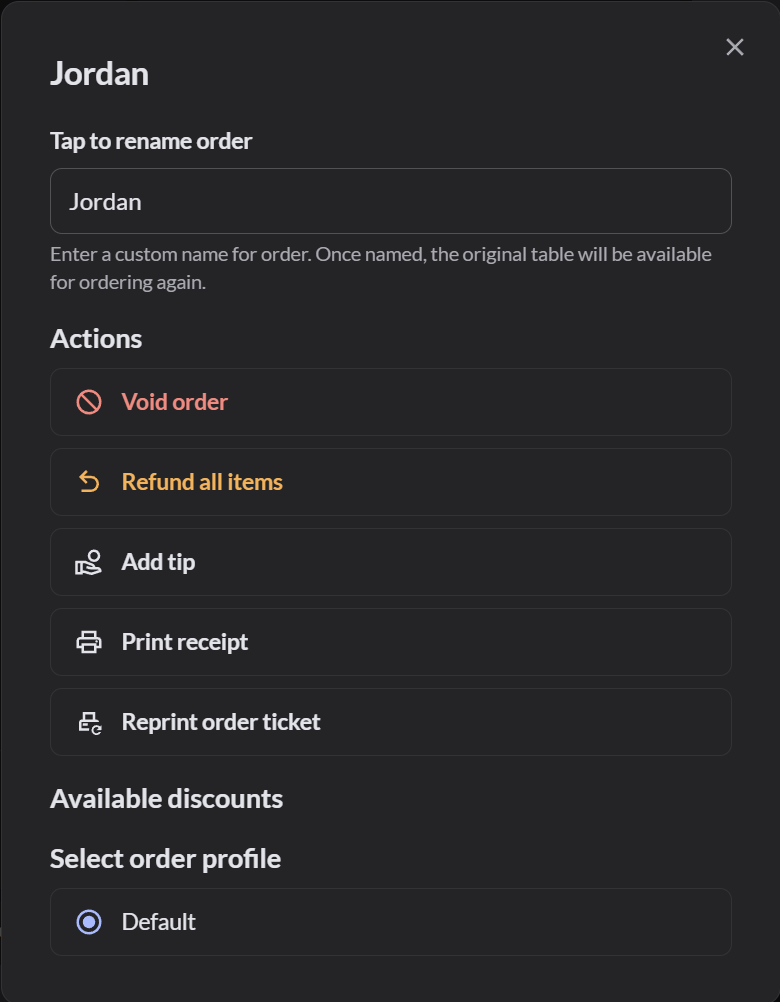
Actions at the top right has more: rename the order, Void order, Refund all items, Add tip, Print receipt, Reprint order ticket, discounts and order profiles.
If it doesn't work
- There's no Remove from order: the item was sent. Void it instead.
- "Your role does not allow": ask a manager to make the change.