Give an order to another server
Who: server or manager. When: your shift ends and you still have open tables or tabs.
By default, a server can only open the tables and tabs they started. Before you leave, give your open orders to the person who takes over.
Quick version
Sell › Orders › click the arrows next to your name › pick the person › Transfer to name.
1. Find the order
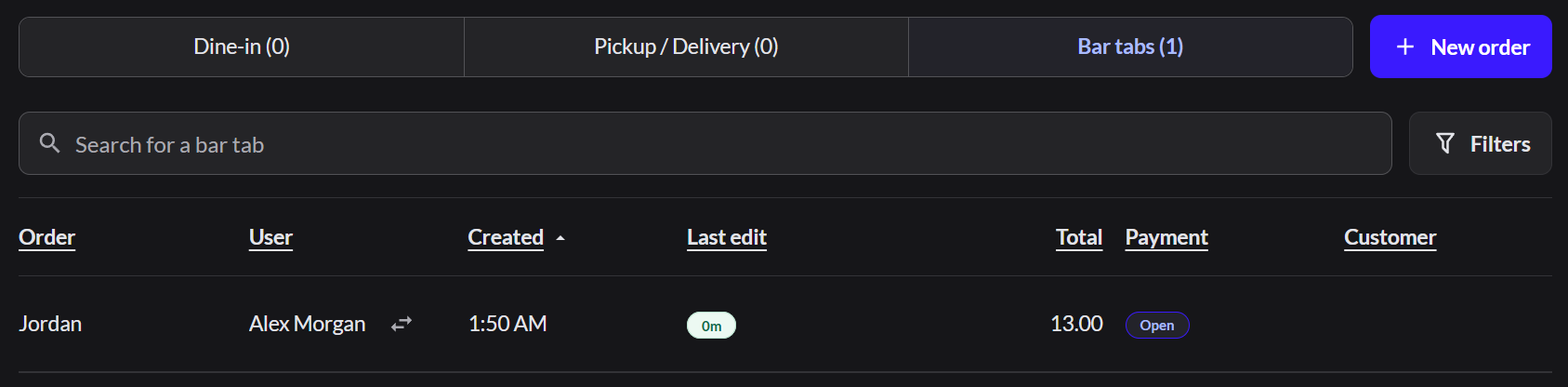
Go to Sell › Orders. Click Dine-in for tables, or Bar tabs for tabs.
2. Pick who takes it over
In the User column, click the arrows next to your name. Then click the person who takes over.
3. Transfer it
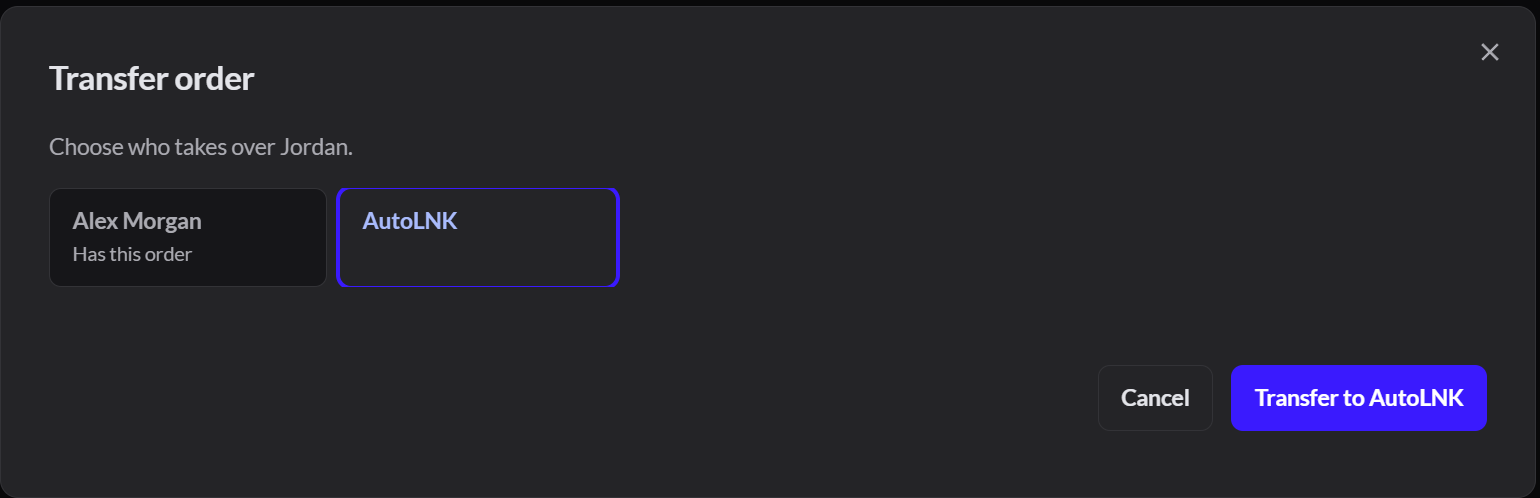
Click Transfer to and their name. The User column changes to their name, and they can open the order.
Repeat these steps for each open order.
To move an order to a different table instead: How to move to another table
If it doesn't work
- There are no arrows next to your name: your role doesn't allow you to move orders. Ask a manager.
- "No other staff can take orders at this outlet": the person isn't set up for this outlet. Ask an Admin to give them access in Setup › Users.
- "Your role does not allow: Table access": you tried to open an order someone else started. Ask them or a manager to transfer it to you.