Kitchen stations
Who: manager or Admin. Cashiers can also do this unless an Admin has turned it off. When: once for each part of the kitchen that needs its own screen, such as the grill or the bar.
A station controls which items show on each kitchen screen.
Quick version
KDS › Kitchen stations › Add station › name › pick the items › Save › note the connection code.
1. Add the station
Go to KDS › Kitchen stations and click Add station. Type a name, such as Grill.
2. Route items to it
Under Items routed here, select the items this station makes. You can also pick whole Categories. To start, leave the screen settings as they are.
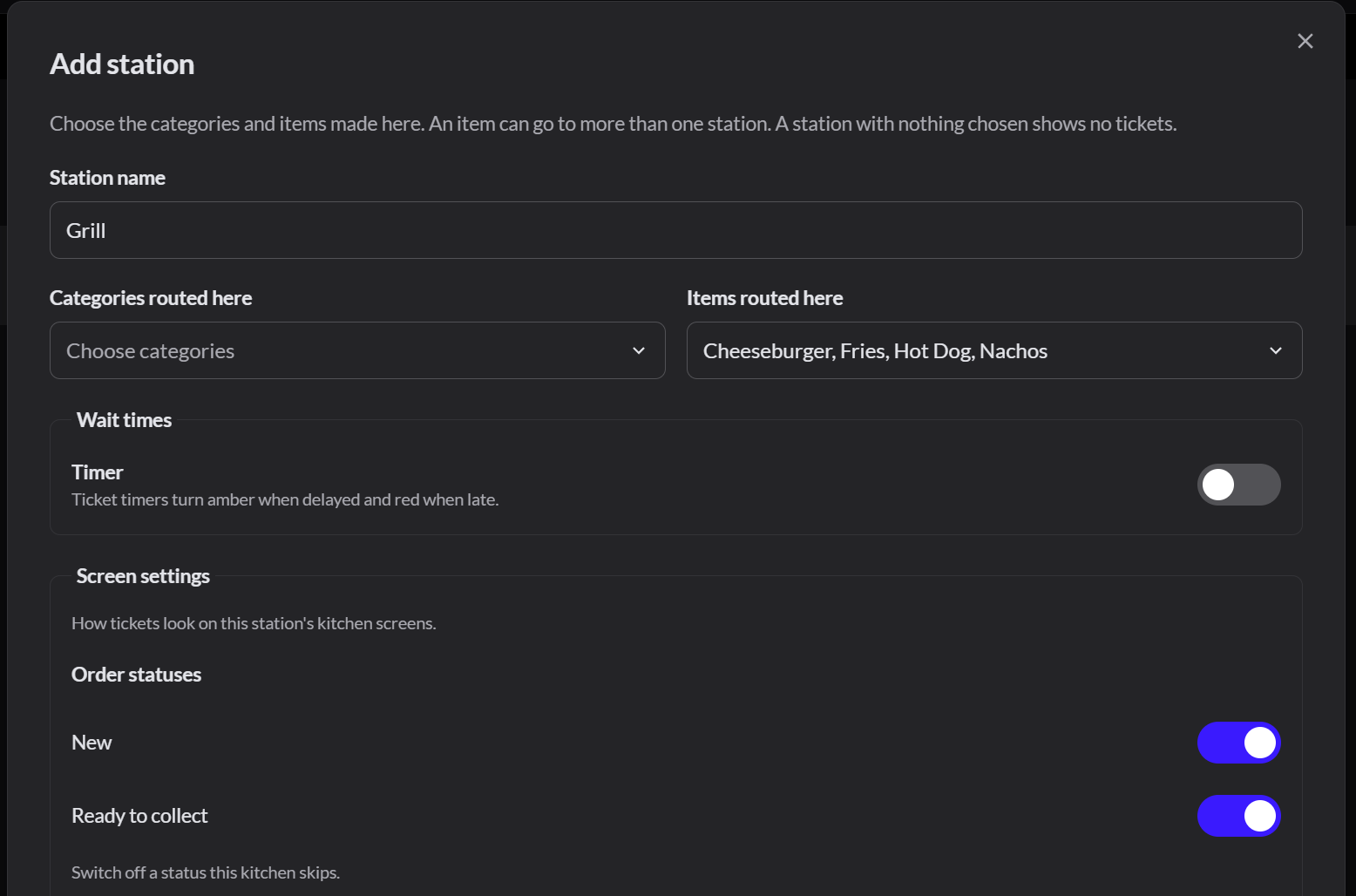
Click Save.
3. Note the connection code
The station list shows a Connection code for each station. You type this code on the kitchen screen. More about the kitchen display
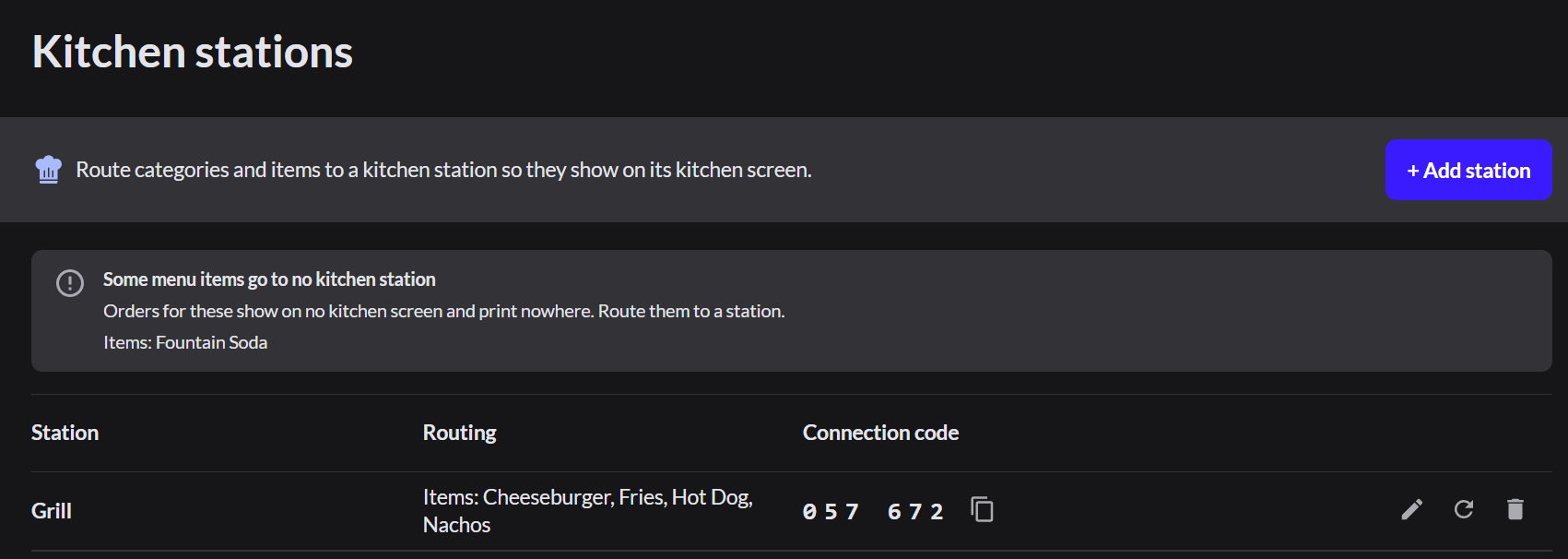
A gray notice, Some menu items go to no kitchen station, lists items that aren't routed to a station. Orders for those items don't show on any kitchen screen. Route these items to a station, or leave them unrouted on purpose, such as bottled drinks.