Split a check
Who: server or cashier. When: customers at one table pay for their own items.
Quick version
Pay › tap the items one person is paying for › pay › repeat for the rest.
You can split by item only on table orders and tabs. A counter order is paid in one go.
1. Pick what the first person pays for
On the payment screen, tap their items under Items. The bottom of the screen shows Total selected, and Pay shows that amount.
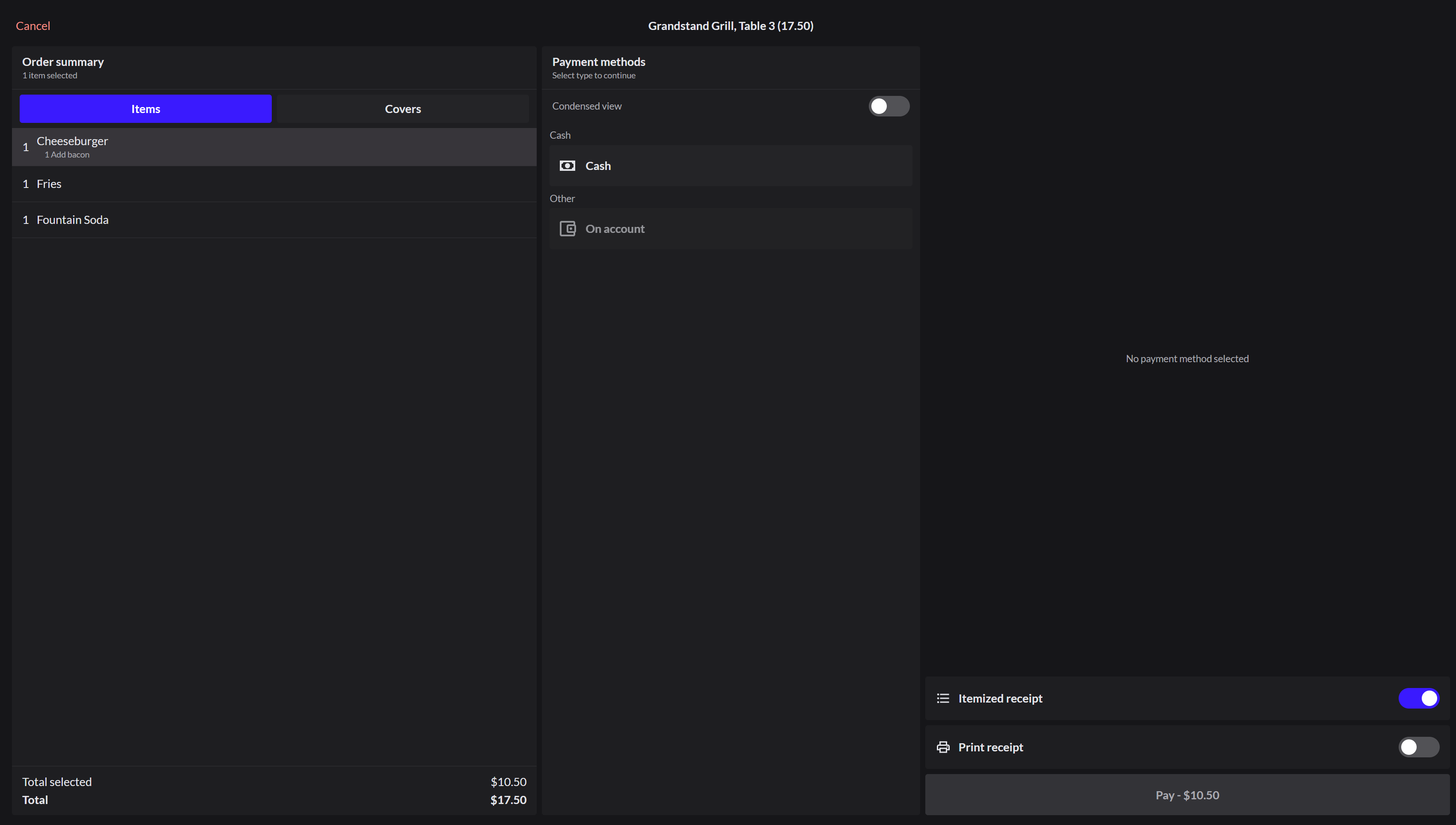
To split the check evenly by guest instead, open the Covers tab.
2. Take their payment
Choose the payment type, add a tip if there is one, and click Pay.
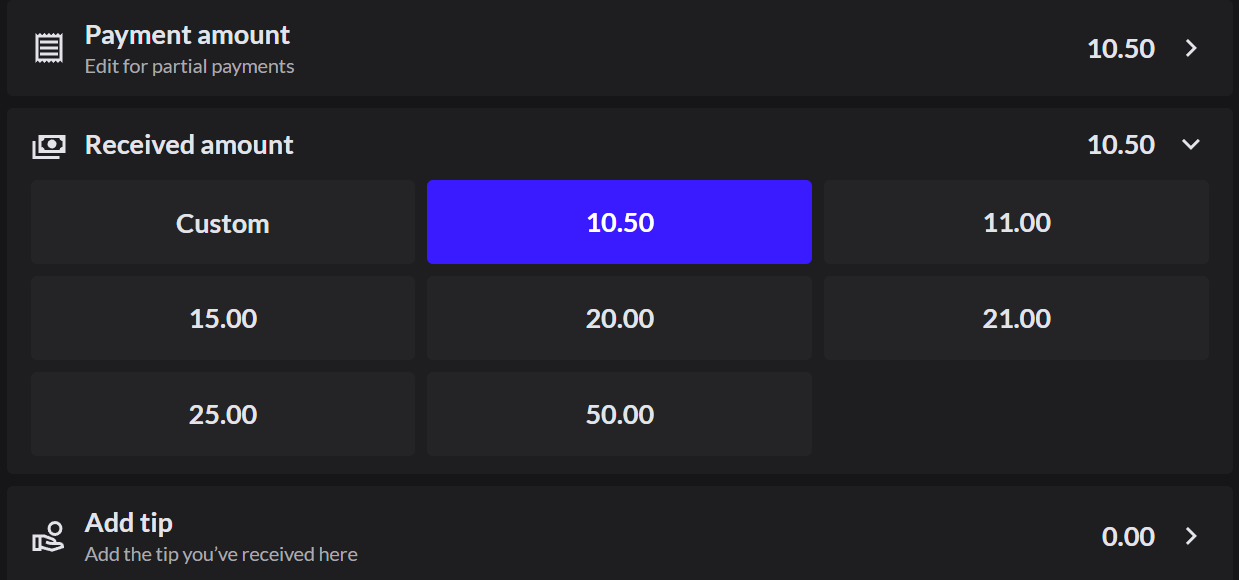
3. Pay the rest
The paid items disappear, and Paid shows the amount already paid. Repeat for the next person.
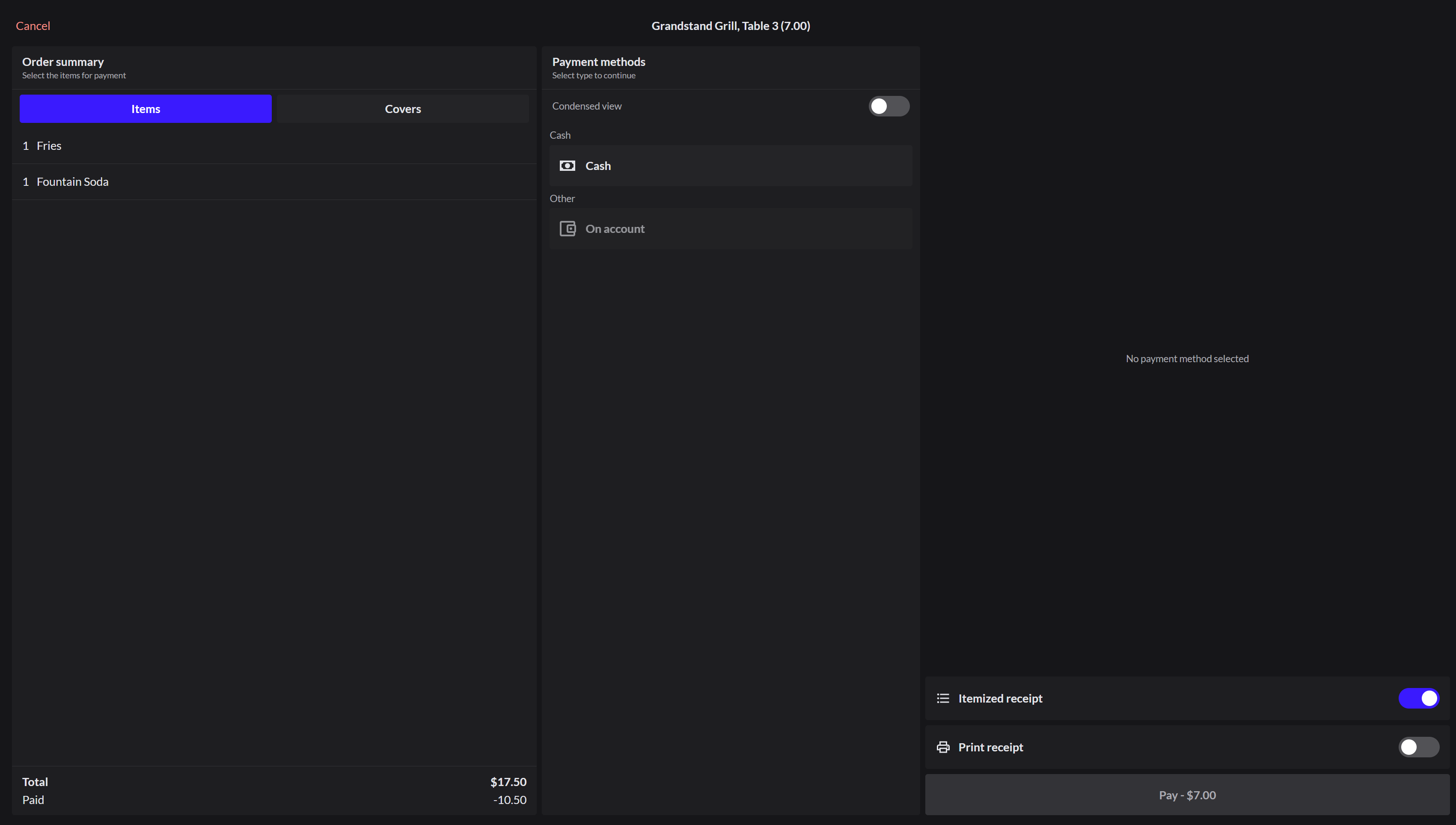
Each payment becomes its own receipt in Sales history.
Split with the split check screen
An Admin can turn on a full screen for splitting checks. Go to Setup › POS configurations, open the configuration, and under Payments, select Activate separate screen for check splitting. More about POS configurations
When it's on, table and tab orders show a Split check button next to Send and Pay.

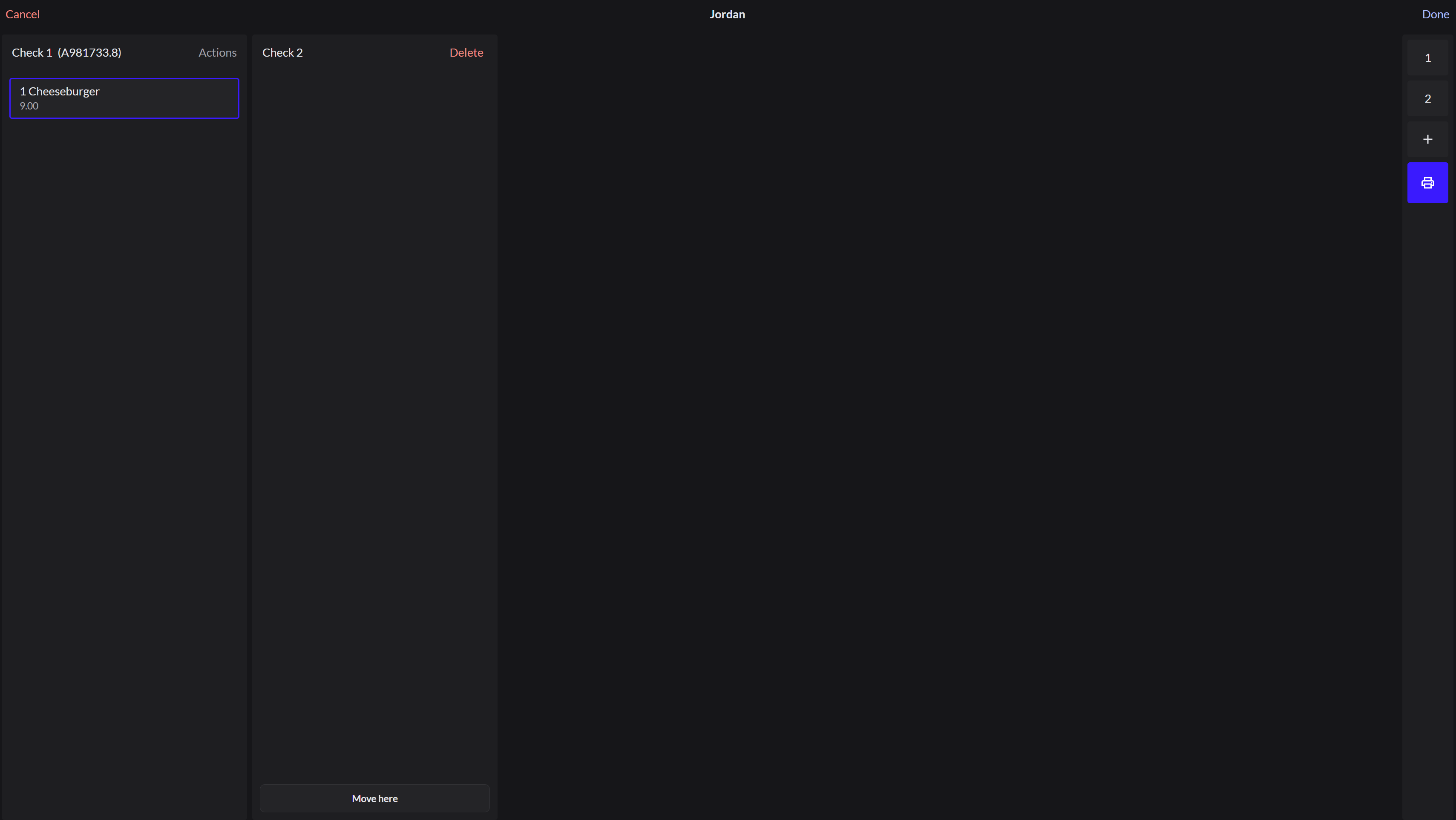
On that screen you can:
- Click + on the right to add a check. Tap an item, then click Move here on the check it should go to.
- To split one item between checks, click Split next to it, tick the checks, then click Done.
- To split the whole check evenly, click Actions on the check, choose How many parts, then click Split receipt - 2 parts (it shows the number you chose).
- Print one check, or click Print all checks.
- Pay each check on its own, then click Done.
- Click Cancel, then Confirm, to leave without keeping your changes.
An order with an amount discount can't be split on this screen.
To have one guest pay a set amount instead: How to take part of the payment