Make a cash sale
Who: cashier. When: a customer pays with cash.
Quick version
Tap the products › Pay › Cash › type the cash given › hand over the change › Complete sale.
1. Add the products
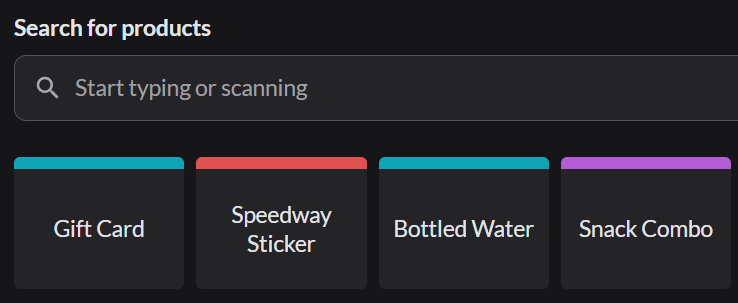
On the Sell screen, tap each product. Tap it again to add another one. You can also type a name or scan a barcode in the search box.
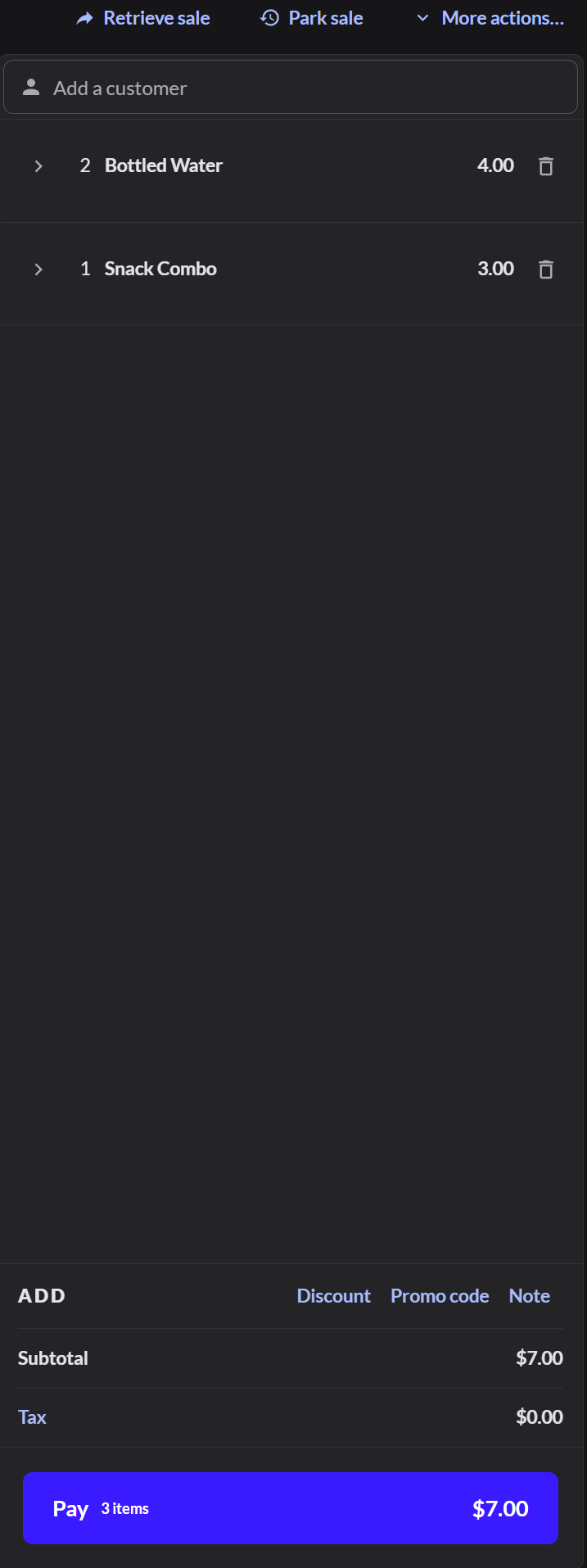
The sale appears on the right. Check it with the customer, then click Pay.
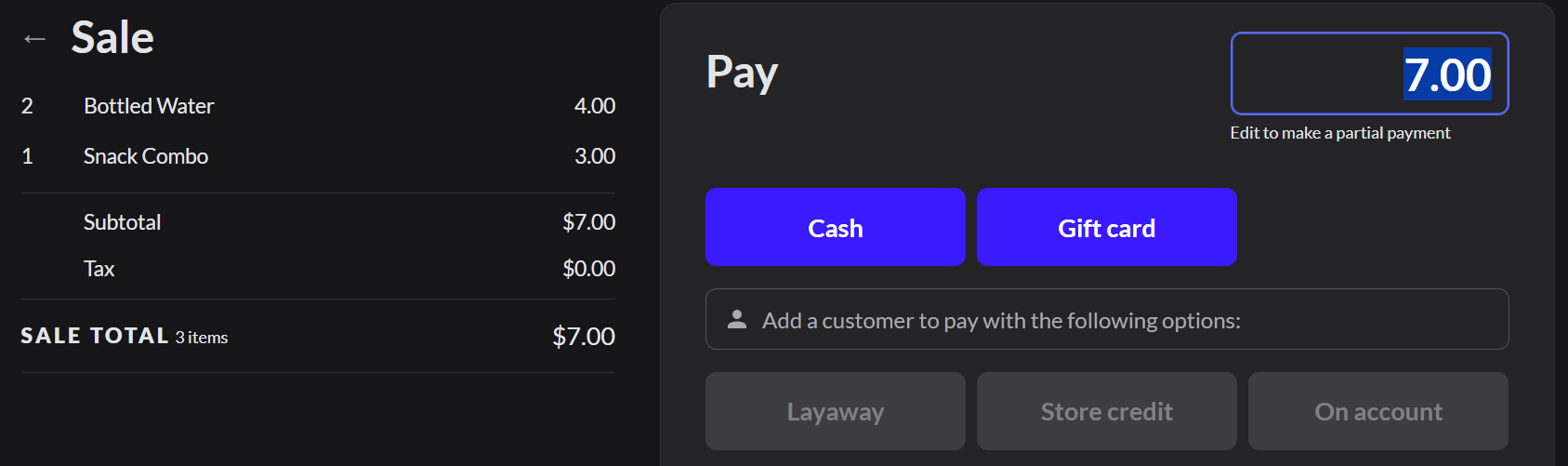
2. Choose Cash
3. Enter the cash given
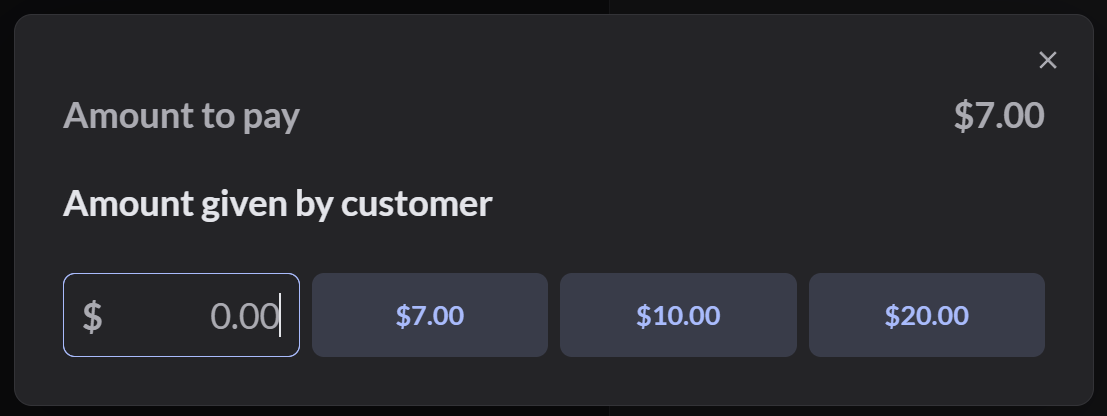
Tap a quick amount, or type the amount and press Enter.
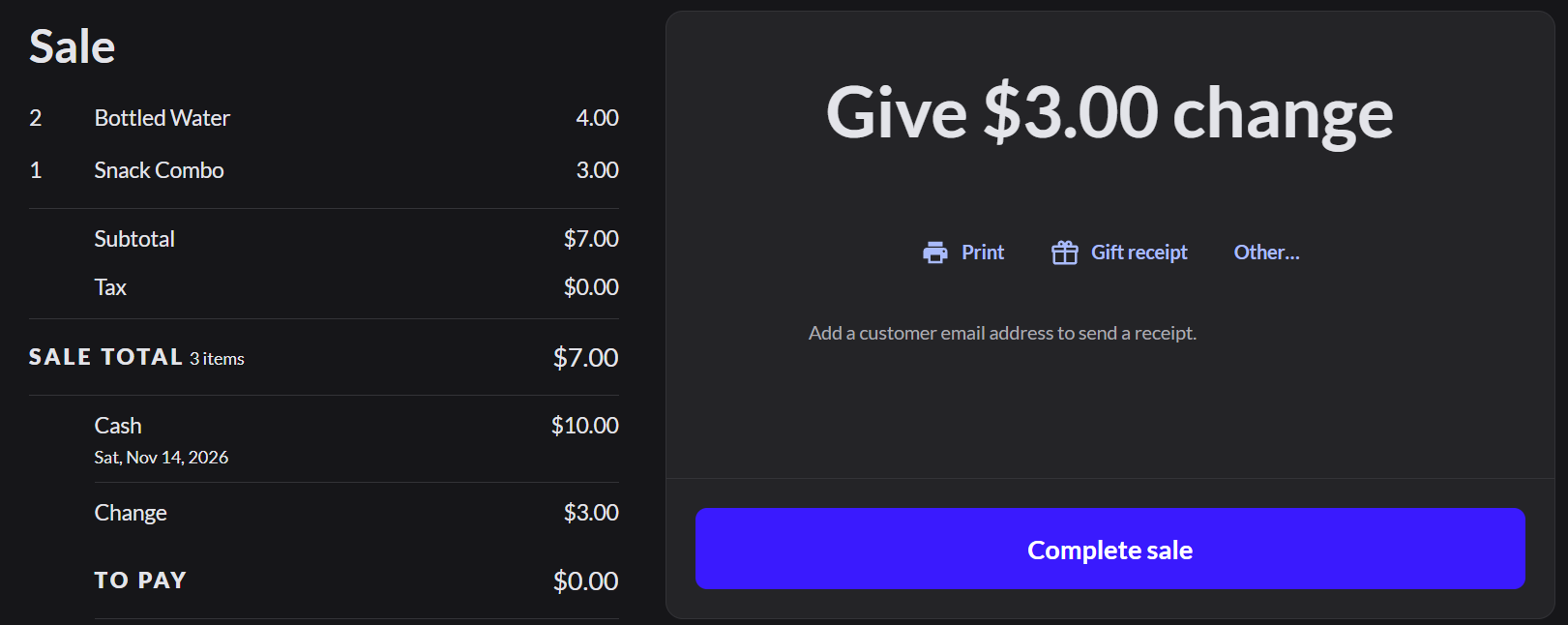
4. Give change and finish
Hand over the change shown at the top, then click Complete sale.
Expected result: the screen clears and is ready for the next customer.
If the customer pays by card: How to take a card payment
If it doesn't work
- Pay is grayed out: the register is closed. How to open the register
- A Windows print window opens: click Print for a receipt, or Cancel to skip it. The sale is saved either way.
- Wrong item added: click the trash icon on its line before you click Pay.