Sell and redeem gift cards
Who: cashier. When: a customer buys a gift card, adds money to one, or pays with one.
Gift cards work in Retail mode only. Restaurant registers can't take gift card payments.
Quick version
Sell: Gift Card › scan the card › Find gift card › amount › Add to sale › take payment. Redeem: Pay › Gift card › scan › Check balance › Redeem.
Sell a gift card
- On Sell, tap Gift Card.
- Scan the card, or type its number, and click Find gift card.
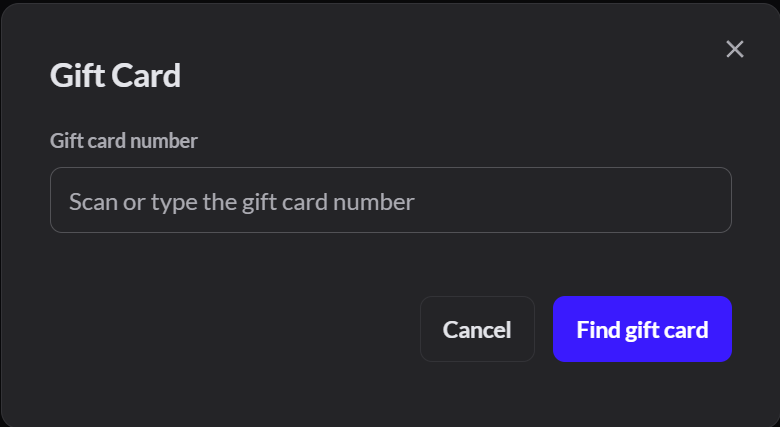
- For a new card, tap one of the set amounts, or type an Amount. Then click Add to sale.
- Take payment as usual. The card works once the sale is paid.
To add money to a card the customer already has, scan it, click Add Funds to Gift Card, type the Amount to add, and click Add to sale.
Take payment with a gift card
- Click Pay, then Gift card.
- Scan the card or type its Card number, and click Check balance. The screen shows how much the card holds.
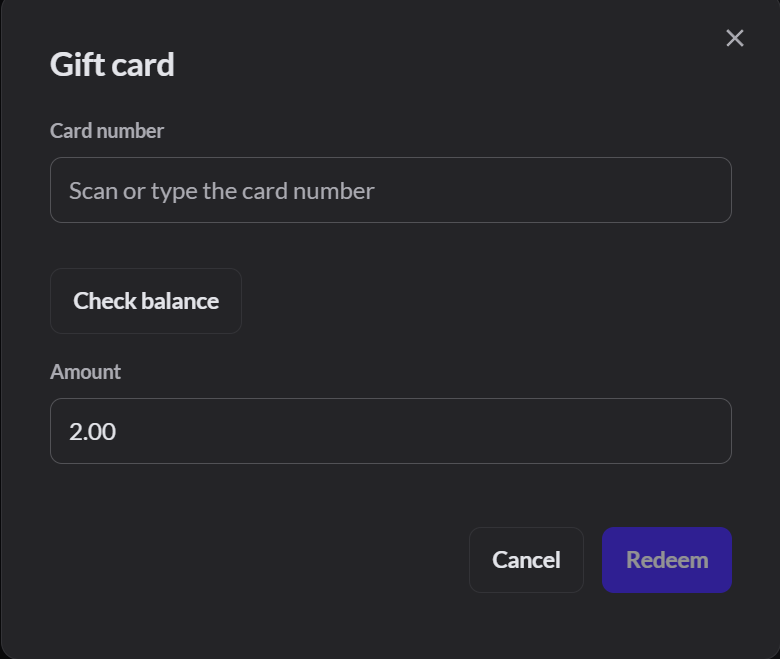
- The Amount fills in. Click Redeem.
- If the card doesn't cover the whole sale, take the rest another way.
To check a balance without a sale, an Admin or manager can search for the card in Catalog › Gift cards.
Set up gift cards
Who: an Admin.
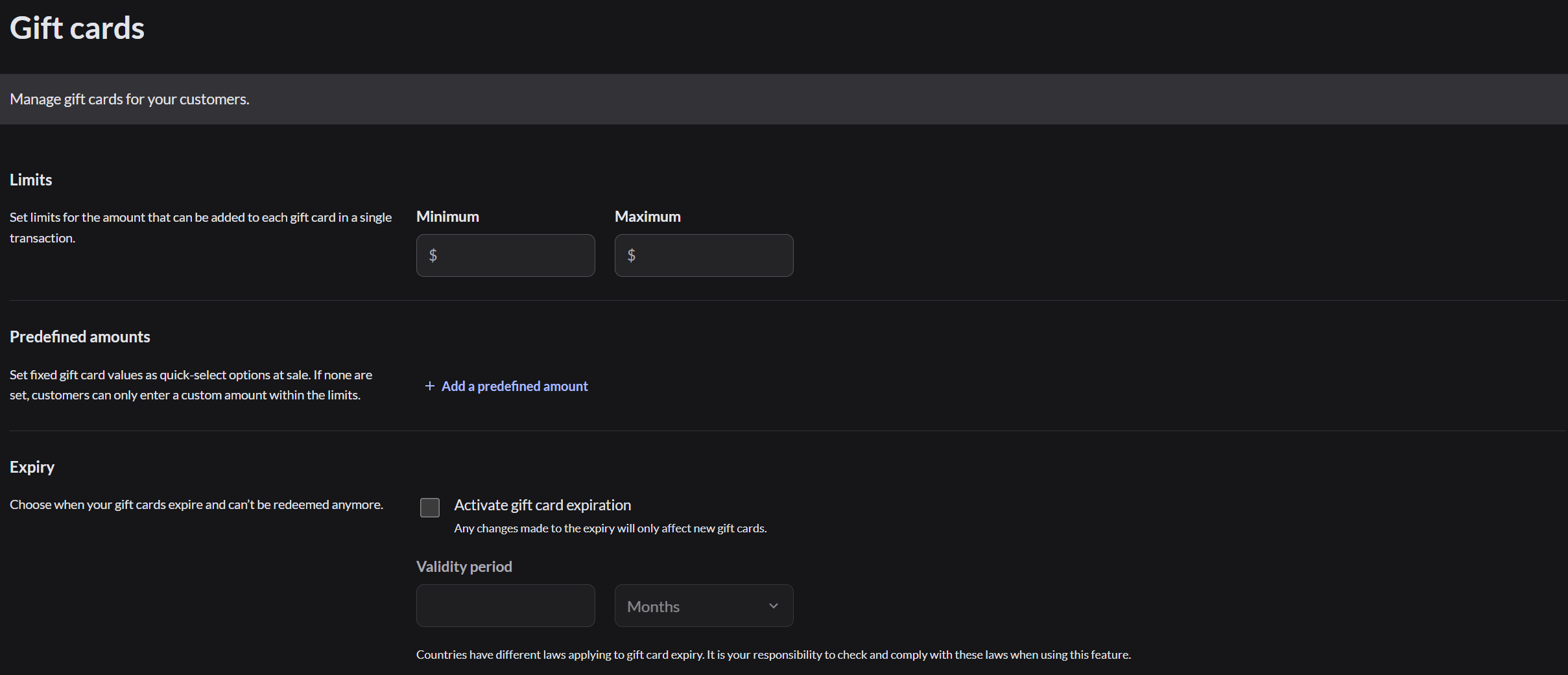
Go to Catalog › Gift cards in Retail mode. You can set the Minimum and Maximum amount, up to four Predefined amounts that show as buttons, and when cards expire.
If it doesn't work
- "New or reloaded card codes need at least eight characters": check the number. Card numbers use letters, numbers and dashes.
- "No gift card with that number was found": check the number and try again.
- "This card has no value left", "This card has expired" or "This card is no longer active": take payment another way.
- "Gift card payments are not turned on for this outlet": ask an Admin.