Add products
Who: manager or Admin. When: before selling, and whenever something new goes on sale.
Quick version
Catalog › Products › Add product › name, price, stock › Save.
1. Start a new product
Go to Catalog › Products and click Add product.
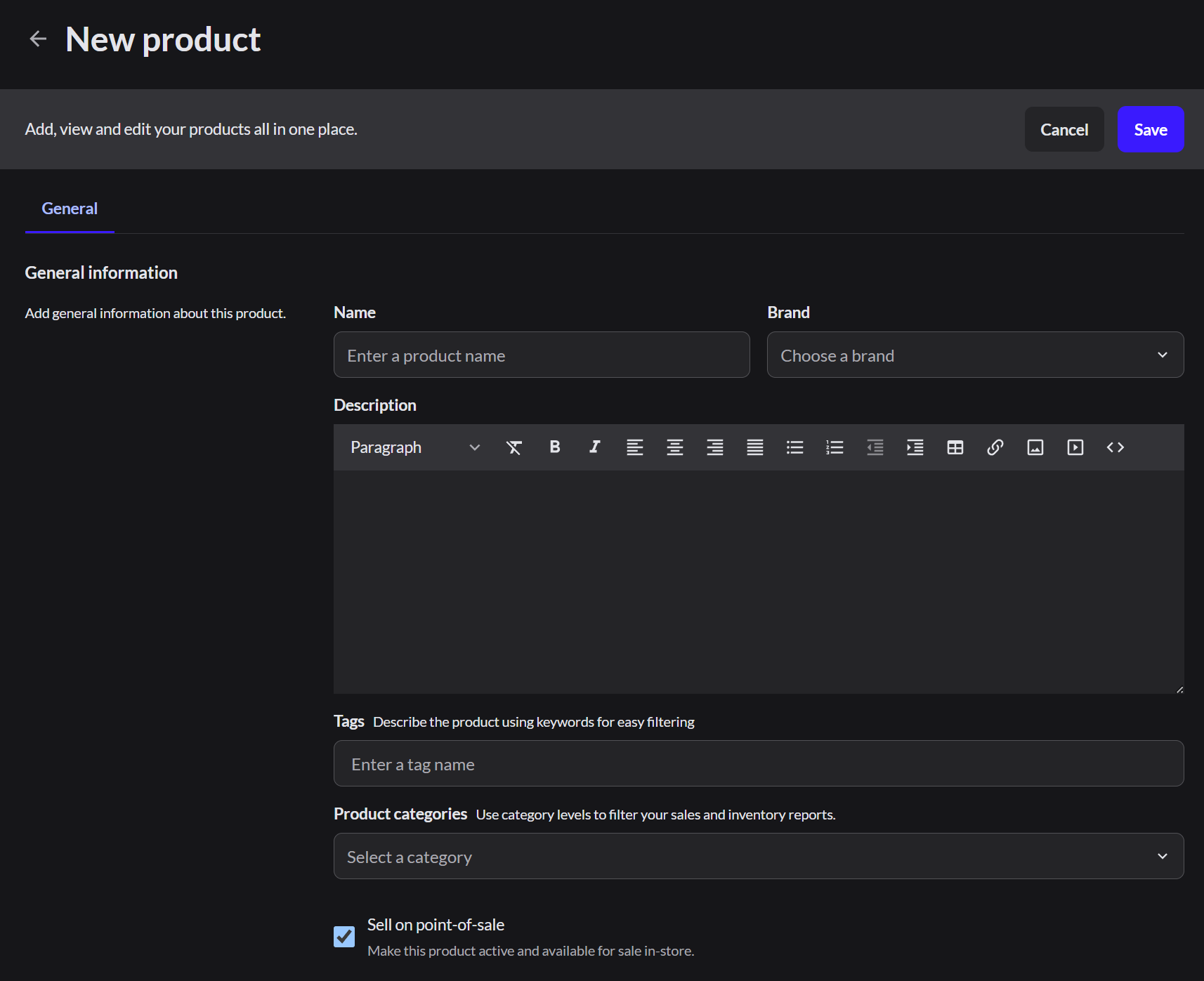
- Type the product Name. This is what shows on the Sell screen and the receipt.
- Leave Sell on point-of-sale selected.
- Choose the product type. Most products are a Standard product.
| Product type | Use it for |
|---|---|
| Standard product | One item with its own stock, such as a bottle of water |
| Variant product | One item in several sizes or colors, such as a T-shirt |
| Composite product | A bundle made of other products, such as a snack combo |
2. Set the price and stock
Scroll down to Price and Inventory levels.
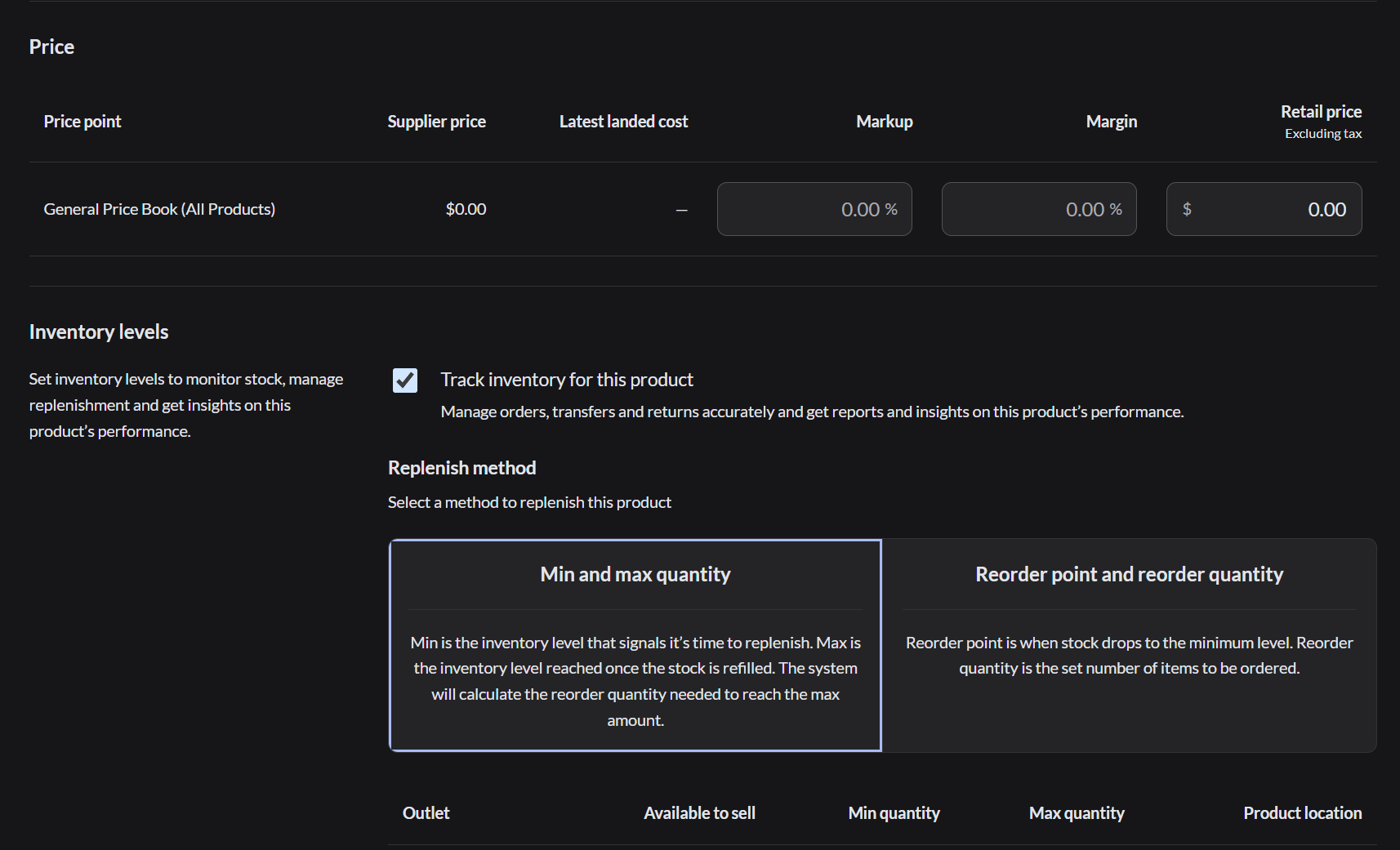
- Type the Retail price.
- Leave Track inventory for this product selected if you count stock for it.
- Type how many you have under Available to sell.
3. Save
Click Save at the top. The product appears on the Sell screen right away.
The barcode number is made automatically. To use the barcode already printed on the product, change SKU code type to Custom and scan it in.