Product categories and price books
Who: manager or Admin. When: you group products for reports and discounts, or set different prices for some customers, dates or stands.
Quick version
Catalog › Product categories › Add category › name › Add category. Catalog › Price books › Add price book › details and prices › Save.
Add a product category
- Go to Catalog › Product categories and click Add category.
- Type a Category name, such as Drinks.
- To put it inside another category, choose it in Inside. Otherwise leave Top level.
- Click Add category.
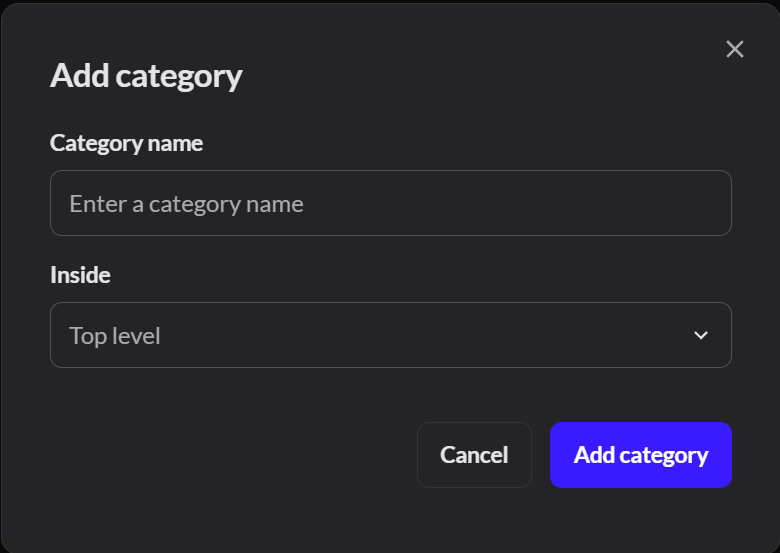
Then choose the category on each product. Categories are used in reports, discounts and service charges. A category with products in it can't be removed.
Add a price book
A price book holds different prices for some products. When more than one price applies, the lower price wins.
- Go to Catalog › Price books and click Add price book.
- Type a Name. To limit it, choose an Outlet, a Customer group, and Valid from and Valid to dates.
- Under Products, add each product and type its Retail price.
- Click Save.
In Restaurant mode, a price book can also go on an order profile, such as lower prices for staff meals.Order profiles and service charges