Printers and receipts
Who: manager or Admin. When: setting up a receipt printer, or stopping the print window from opening.
Printing is controlled in two places.
| Setting | Where | What it controls |
|---|---|---|
| Which printer | Setup › Printers | The printer this computer uses. Saved on this computer only |
| Whether to print | Setup › Outlets and registers › the register | Whether a receipt prints after every sale |
Set up a receipt printer
Go to Setup › Printers.
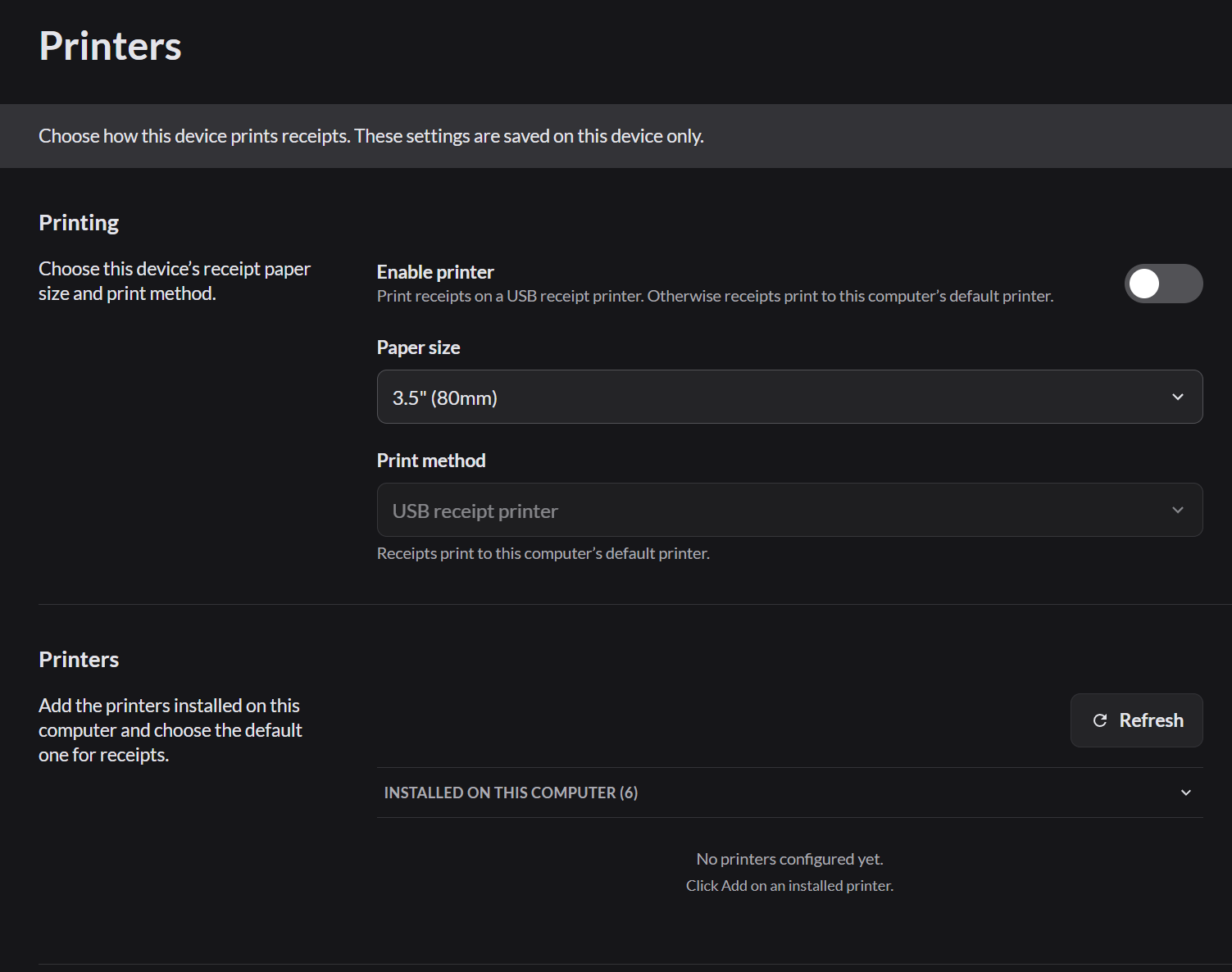
- Plug the receipt printer in and install it in Windows.
- Under Printers, click Refresh.
- Open Installed on this computer and click Add next to the printer.
- Turn on Enable printer.
- Choose the Paper size. Most receipt printers use 3.5" (80mm).
- Click Print test to check it.
If Enable printer is off, receipts go to the printer marked Default in Setup › Printers.
If no printer is added, the print window opens after each sale.
Print kitchen tickets
Kitchen tickets print from the AutoLNK POS app on the register computer, to that computer's default printer. There's no separate printer for each kitchen station.
- On the register computer, go to Setup › Printers.
- Open Installed on this computer and click Add next to the kitchen printer.
- The first printer you add becomes the default. It shows Default. If you add more than one, click Make default on the kitchen printer.
- Click Print test to check it.

Receipts and kitchen tickets share one Default printer. If you make the kitchen printer the default, receipts print there too.
To stop using a printer on this computer, click Remove.
On the restaurant order screen, Print jobs lists every kitchen ticket and whether it printed. Click Try again to print one again.
Stop the print window from opening after every sale
- Go to Setup › Outlets and registers and click the pencil next to the outlet.
- Scroll to Registers and open the register.
- Under End of sale, clear Print receipt.
- Click Save.
You can still print any receipt by clicking Print on the sale's last screen.
If it doesn't work
- Nothing prints: check that the printer is on and has paper, then click Print test.
- It prints on the wrong printer: click Make default next to the right printer.