Security
Who: an Admin. When: deciding how strict sign-in should be.
Go to Setup › Security.
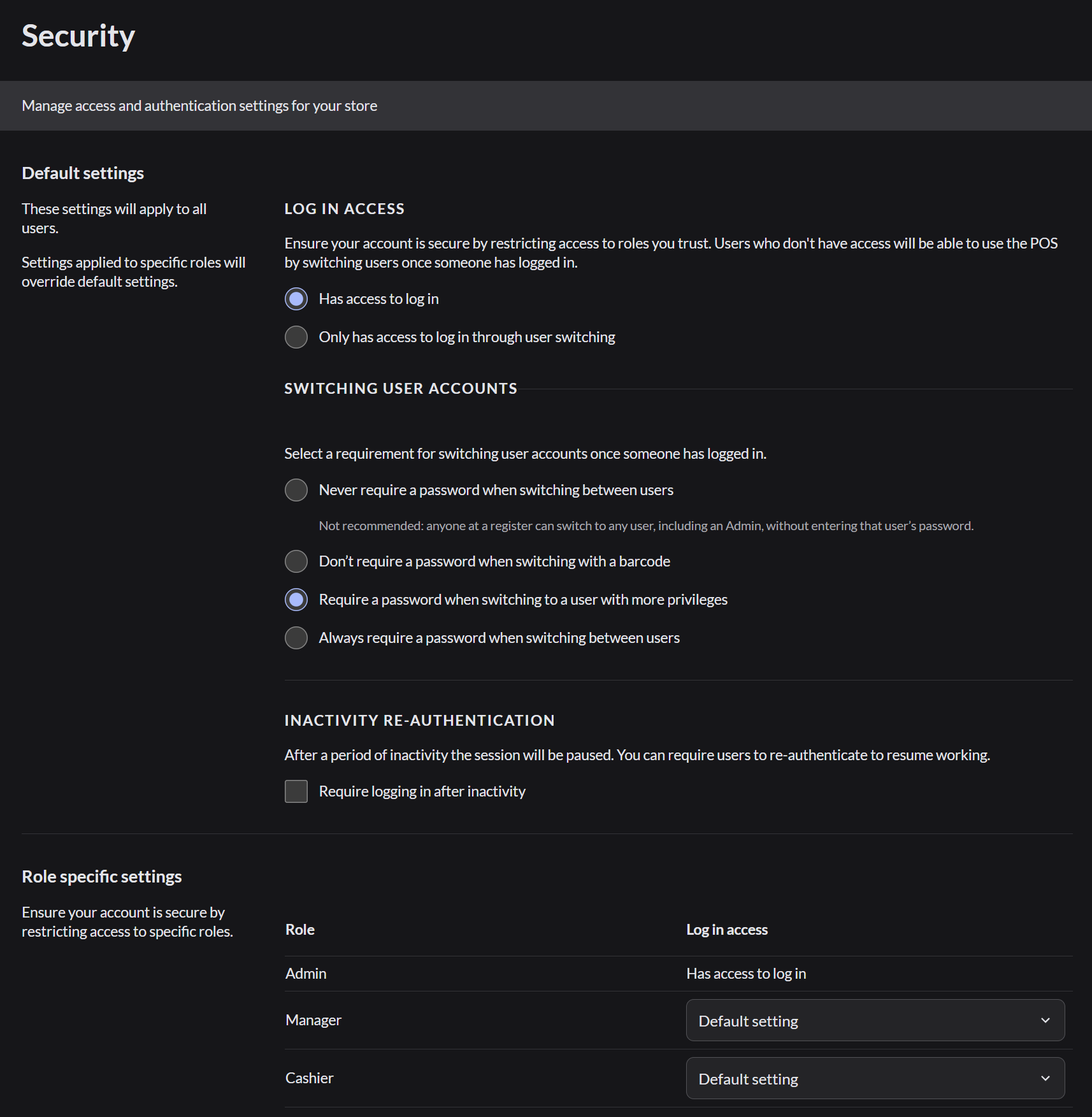
Log in access
| Choice | Meaning |
|---|---|
| Has access to log in | Users can sign in from the login screen |
| Only has access to log in through user switching | Users can only take over a register that someone else has already signed in to |
Switching user accounts
This setting controls when a password is needed to switch to another person on the same register.
| Choice | Meaning |
|---|---|
| Never require a password | Anyone can switch to anyone. Not recommended |
| Don't require a password when switching with a barcode | Team members scan their badge to switch. It still asks for the password on the person's first sign-in of the day, or when switching to a higher role |
| Require a password when switching to a user with more privileges | Switching up to a manager or Admin needs their password. Switching between two managers doesn't |
| Always require a password | Every switch needs a password |
Inactivity
Select Require logging in after inactivity to make the register ask for a sign-in after it has been left alone. Set the time in hours and minutes.
Set different rules for one role
Under Role specific settings, choose a different log in rule for Manager or Cashier. A role's setting overrides the default.
Click Save changes when you're done.